

Documentation Index

Fetch the complete documentation index at: https://docs.ambient.commure.com/llms.txt

Use this file to discover all available pages before exploring further.

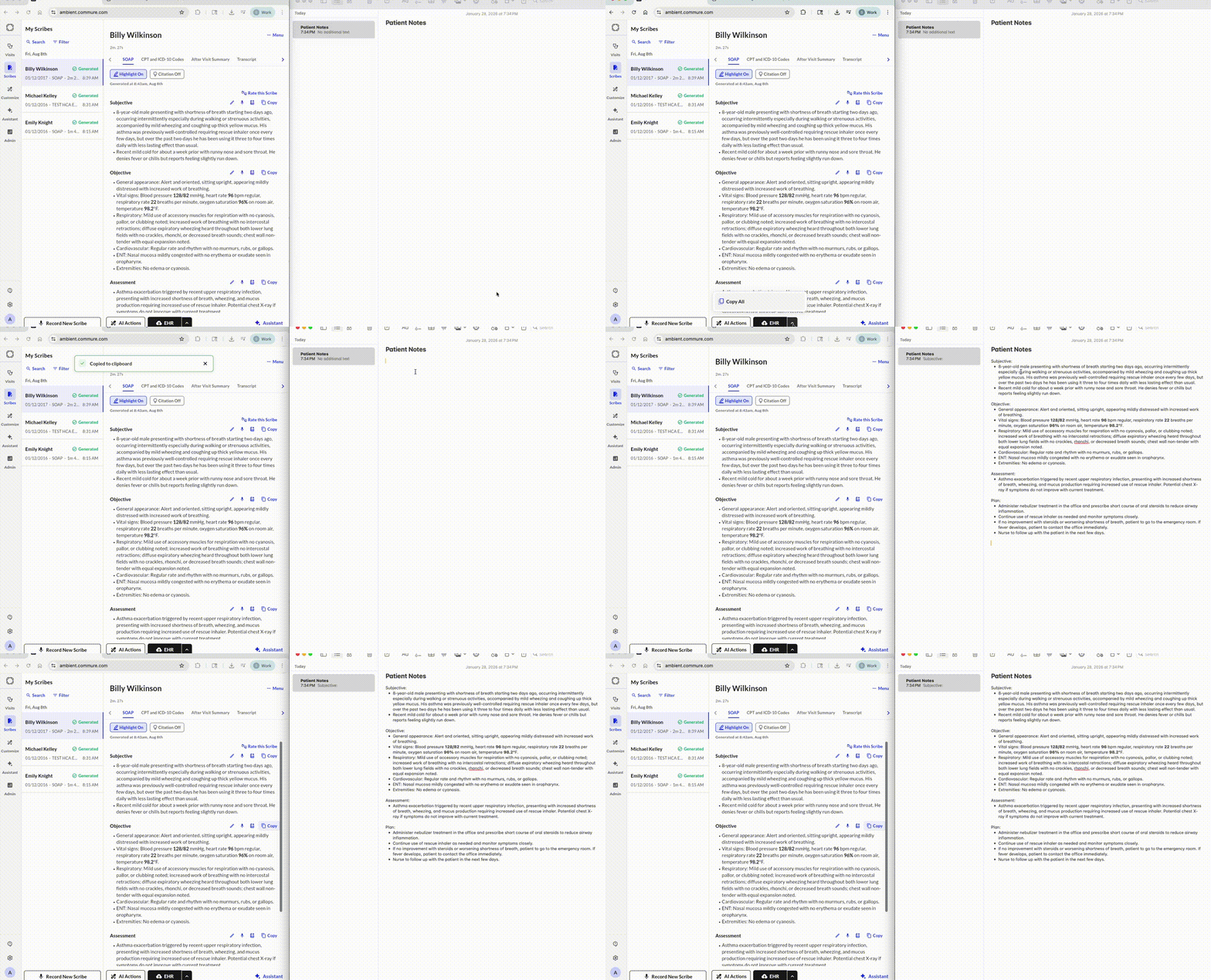
You can transfer your note manually using copy and paste.
  1. Open the completed scribe in Commure Ambient.
  2. Copy the note — you have two options:
    • Copy (per section): Each section of your note has its own Copy button on the side. Use this to copy individual sections one at a time — helpful if you only need to transfer specific parts of the note.
    • Copy All (bottom of note): Use the Copy All button at the bottom to grab the entire note at once.
  3. Open your EHR and navigate to the patient’s record.
  4. Paste the note into the appropriate field.
Copy With Formatting Tip: For a smoother copy-paste workflow, we recommend using the Commure Ambient Google Chrome Extension. It lets you open Commure Ambient on the same tab as your EHR, so you can copy your note and paste it directly without switching between tabs or windows. Always review your note for accuracy before finalizing it in your EHR.