

Accessing via the Web
- Navigate to ambient.commure.com
- Create an account or log in.
- Save hours a day.
Installing the browser extension
Commure Ambient chrome extension is supported on Microsoft Edge and Google Chrome.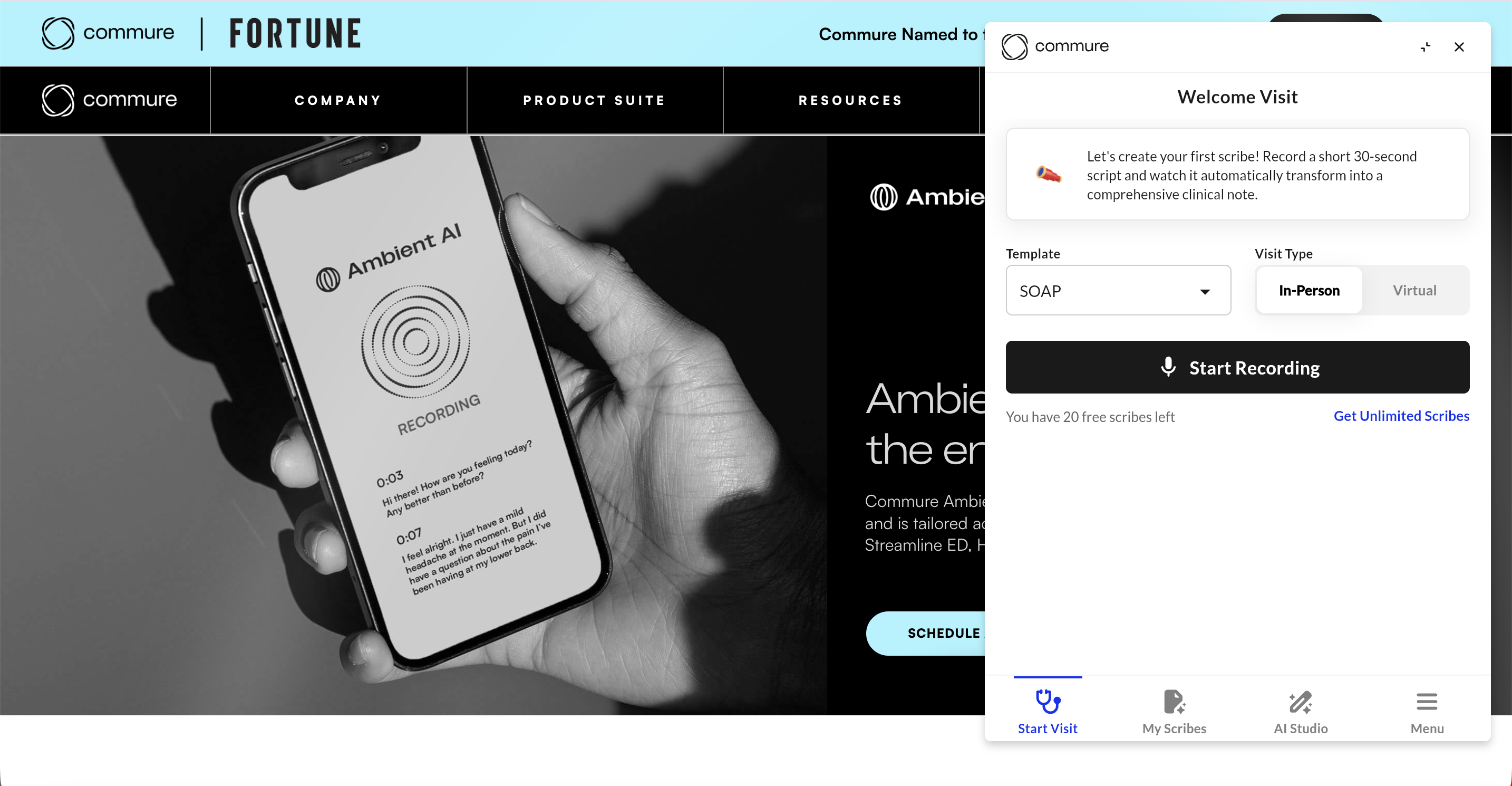
- Navigate to Commure Ambient - Chrome Web Store.
- Click “Add Extension” to download.
- Click the icon next to the web address bar, and then click next to “Commure Ambient”.
- To open the extension, click the Commure Ambient logo (black circle).
Installing on a mobile device
- Go to the App Store or Google Play Store on your iOS or Android device.
- Search “Commure Ambient”
- Open app called “Commure Ambient”
- Download the app
Enable Microphone Permissions
If you are using the web app or the Chrome extension and are unable to start recording, you will need to manually allow microphone permissions. Website:- Click the icon located in the left corner of the web address to open the website settings.
- Toggle the bar to enable microphone permission.
- Go to the extension settings by right clicking the extension.
- Click on “View Web Permissions”, this will open a new tab with all the permissions.
- Click to “Allow” microphone permission.
Bookmark Commure Ambient on your Browser
Microsoft Edge
Microsoft Edge
- Navigate to ambient.commure.com
- Click icon in the address bar.
- In the drop-down next to “Folder”, select “Favorites Bar”, and then click “Done”.
Google Chrome
Google Chrome
- Navigate to ambient.commure.com
- Click icon in the address bar.
- In the drop-down next to “Folder”, select “Bookmarks Bar”, and then click “Done”.