

Audio Issues
Audio Issues
- If you have started a recording and don’t see the volume meter line moving, then check to see that the microphone on your device has been enabled through the accessibility settings on your device.
- If you recorded an encounter and the generated note is missing information or if the volume meter line is not moving very much, check that the microphone on your device is not being blocked and that your device is not positioned too far away from the encounter occuring.
Log-in Issues
Log-in Issues
- If you are unable to log in to your ambient account, you can either press “forgot my password” to create a new one on the spot or you can press “OTP” (one-time password) to be sent a temporary password to get into your account. If the email to reset your password or for the one-time password does not appear within your main email or your email’s spam folder, message our support line explicitly stating the issue with your account and ensure to include in that message the email associated with your ambient account.
Note Linkage Errors
Note Linkage Errors
- If you have created a note and it is not linked to the correct patient, press on the “menu” tab in the top right corner of that generated note and then press the “link to appointment” option.
- If you have created a note under the incorrect patient, press on the “menu” tab in the top right corner of that generated note and then press the “view linked appointment” option. You can then choose to “unlink” or “change” the appointment and then match it to the correct patient.
Recording Reminders
Recording Reminders
- If you are recording on the mobile app and you get an incoming call, the recording will automatically get paused within the app and will only resume after the call has been addressed and you go into the application and press the “resume” button.
- If you are recording on the mobile app, webpage, or chrome extension, no audio file will be saved if the application is closed out while it is actively recording.
Audio Player On Error
Audio Player On Error
Improves the debugging experience for providers when a scribe fails to generate a transcript.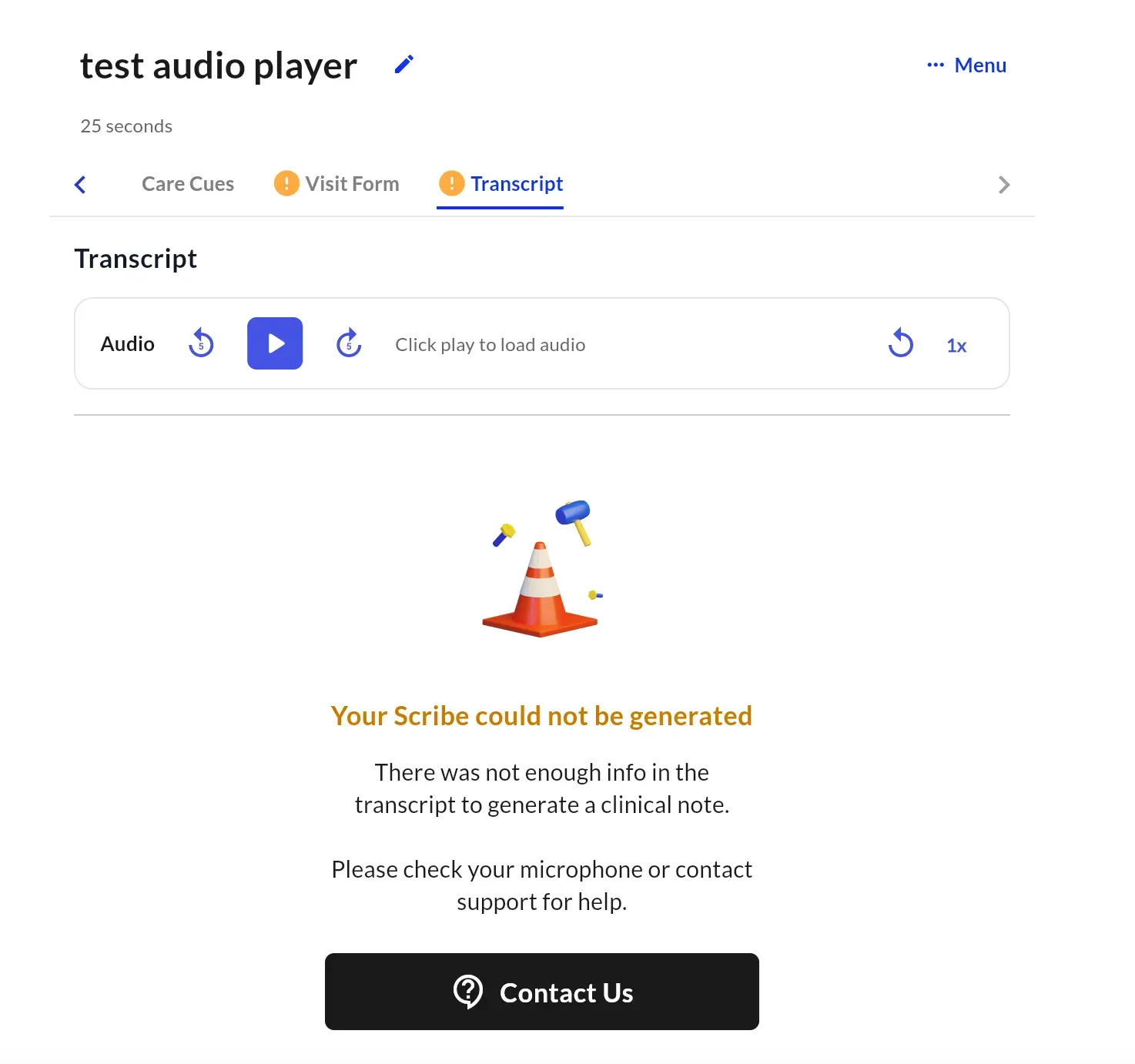
- Audio Validation: If a scribe fails due to “no speech” or other processing errors, the audio player is surfaced immediately on the Transcript tab.
- Provider Self-Service: Allows users to verify if the audio was actually captured or if technical issues (like a muted mic) occurred during the recording.