

-
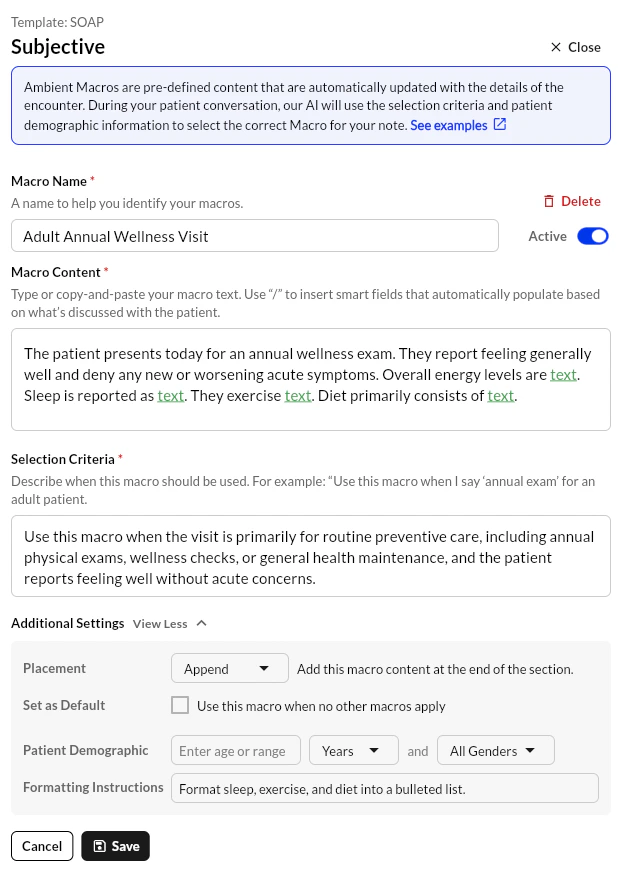
Dynamic Macro – contains the default which can be overridden based on visit details from the transcription. You can also choose to leave the default empty.
Input
Output
Input
Output
-
Static Macro – contains fixed text content that does not include placeholders. The content is injected into the final note as is and nothing additional should be added.
While dot phrases and static macros both deal with static text, the difference lies in how they’re inserted into the note. Static macros should typically be independent sentences/paragraphs. Dot phrases are best for small phrases that are applied throughout a paragraph/note.
Input
Output
Macros Setup
Click the link for a guided, step-by-Step walkthrough of setting up a simple macro usecase.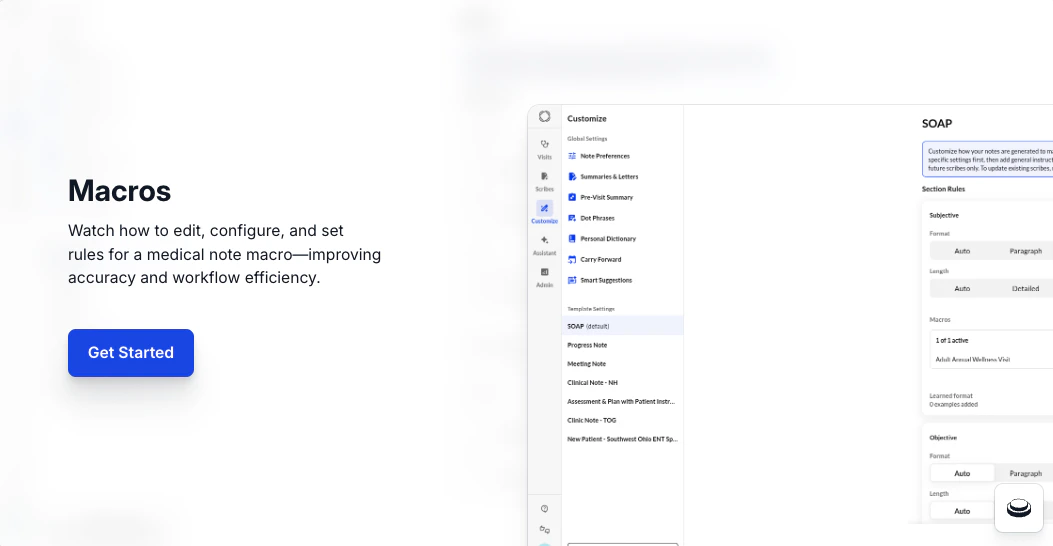
How to Use it
To create and use a macro, navigate to your Customize and navigate to Template Settings (or Custom Formatting tab), then:- Select the note template you wish to add a macro to
- Select the template section the macro will be added to and select “Add Macro”
- If the same macro is required in multiple sections, it must be added individually to each section.
- Create your macro, entering the exam name and macro content.
- You can choose additional preferences to personalize your macro.
- Default: if the macro should always appear if no other macro is triggered for the same exam name and demographic constraints.
- Listed systems: If unchecked, only the systems listed in the macro will appear. Check the box if you want all systems discussed during the visit to be included, even if they are not explicitly listed.
- Formatting instructions: Add additional custom formatting rules, such as listing abnormal systems at the start of the macro.
- Patient demographics: Macros can be restricted to specific age or gender groups. These demographics must be mentioned in the visit for the macro to trigger.
- Save your newly created macros by selecting the black “Save” button at the bottom of your macro window
- During the visit, explicitly mention the exam name (verbalize macro names) to trigger the macro. The macro will then appear in the generated scribe and you can toggle the highlight feature on to see the dynamic values that were added within it.
Benefits
- Reduce time spent editing and including
- Saves time on repetitive documentation
- Improve patient personalization of physical evaluation data