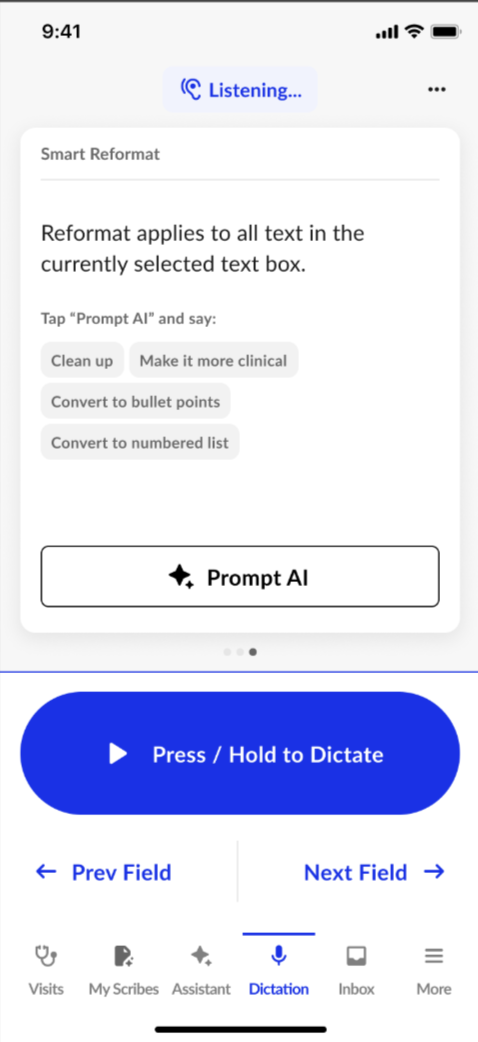

- Use your phone as a real-time dictation microphone
- Insert text directly at your desktop’s cursor in the EHR
- Access shortcuts and voice commands
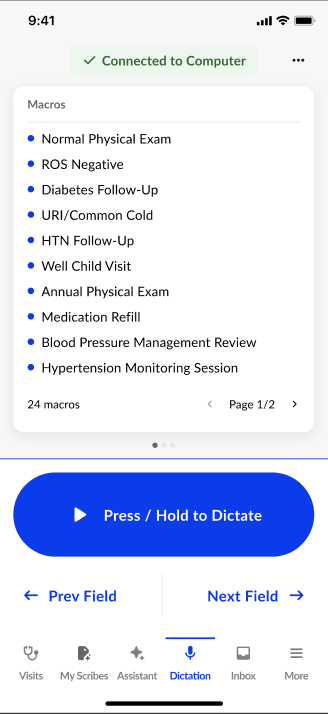
- View and trigger macros
- Record from anywhere in the room without being tethered to a device
Set Up Instructions
- Open the Commure Desktop App on your Windows computer.
- Open the Commure Ambient app on your phone.
- Navigate to the Dictation tab in the mobile app.
- Ensure both devices are:
- On the same WiFi network
- Logged in with the same email
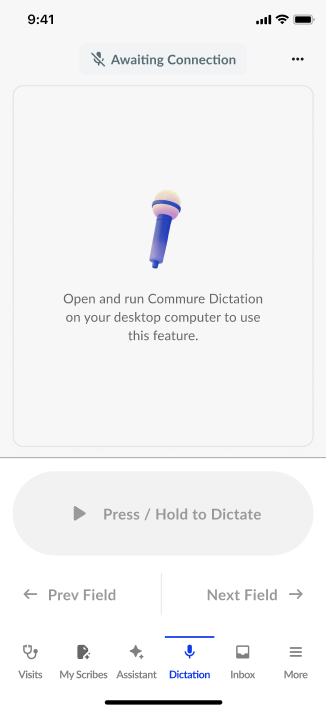
- Confirm both devices are on the same WiFi
- Confirm the desktop app is open
- Log out and back in on both devices if needed
Using the Dictation Tab
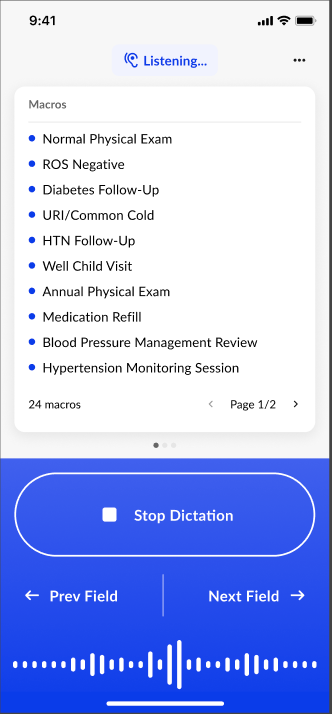
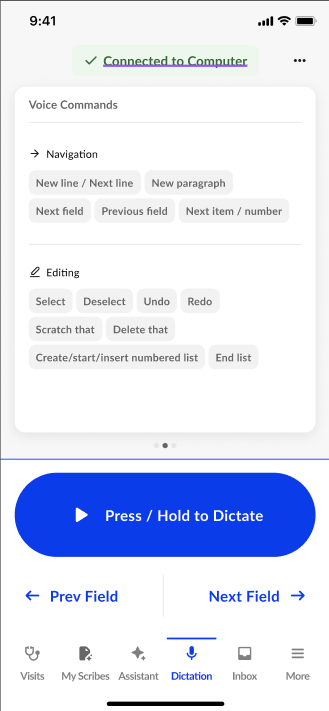
The Dictation tab on mobile is your control center for Mobile Mic. From here, you can:🎙 Record
Tap the record button to begin dictating.Text will insert wherever your cursor is placed in the EHR or notepad.
⚡ Use Shortcuts
Access quick dictation controls such as:- Start/stop recording
- Insert formatting commands
- Macros
- Voice commands
🧪 Try Contextual Edit
Swipe to the third screen to try Contextual Edit. Press the button to start the engine, verbalize your instructions, and then press the button again to submit the request. Watch your changes happen on your desktop!