> ## Documentation Index
> Fetch the complete documentation index at: https://docs.ambient.commure.com/llms.txt
> Use this file to discover all available pages before exploring further.
# App Setup
> Commure Ambient can be accessed on web browser, chrome extension, or mobile device. Create and transfer notes in minutes to your EHR.
## Accessing via the Web
1. Navigate to [ambient.commure.com](http://ambient.commure.com)
2. Create an account or log in.
3. Save hours a day.
## Installing the browser extension
Commure Ambient chrome extension is supported on Microsoft Edge and Google Chrome.
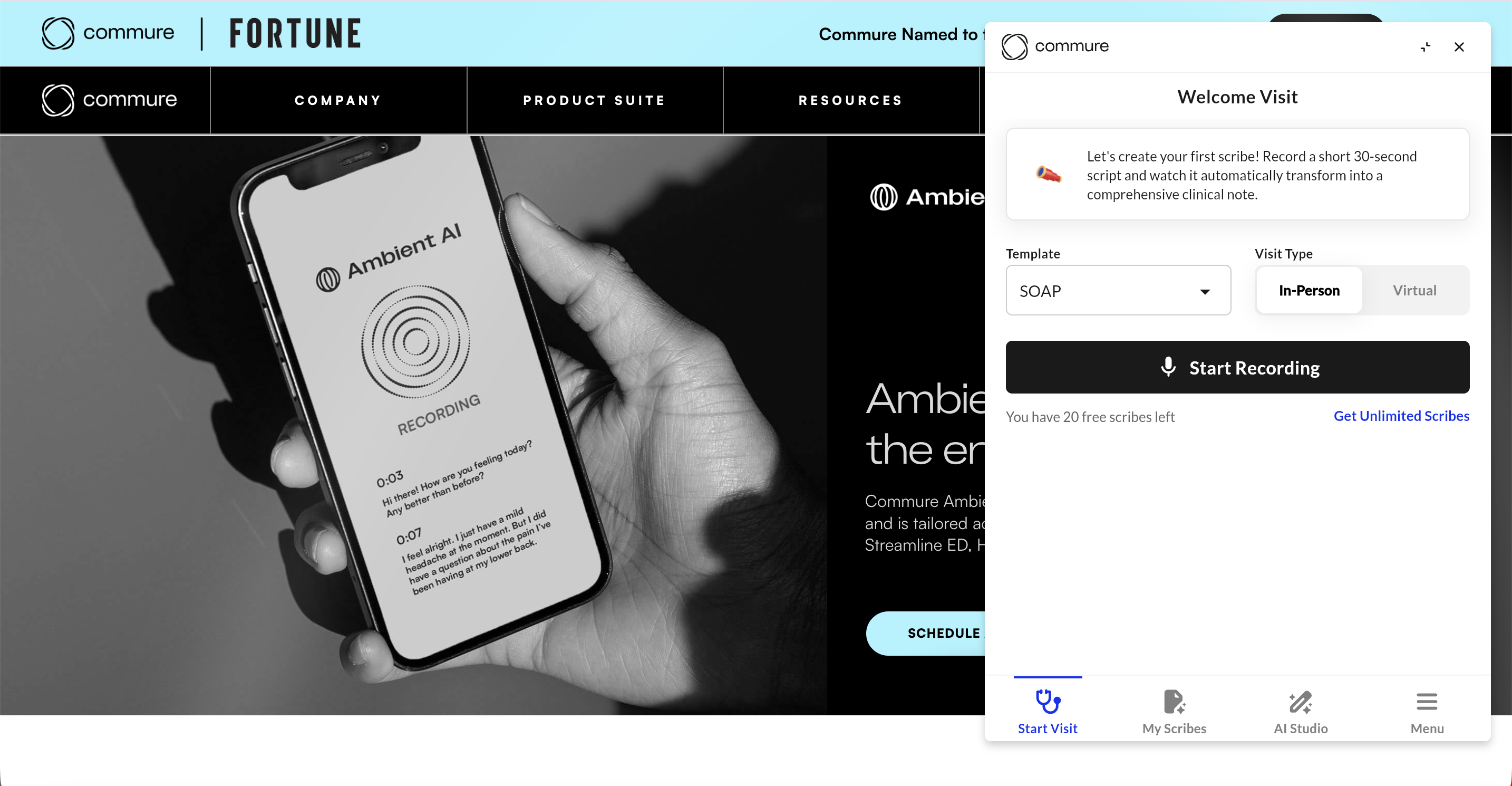 1. Navigate to [**Commure Ambient - Chrome Web Store**](https://chromewebstore.google.com/detail/athelas-scribe/bdieablopfcbafklbkgohgfoiegjjeoo).
2. Click "Add Extension" to download.
3. Click the icon next to the web address bar, and then click next to "Commure Ambient".
4. To open the extension, click the Commure Ambient logo (black circle).
## Installing on a mobile device
1. Go to the [App Store](https://apps.apple.com/us/app/commure-ambient-scribemobile/id6449020492) or [Google Play Store](https://play.google.com/store/apps/details?id=com.athelas.scribe\&pcampaignid=web_share) on your iOS or Android device.
2. Search "Commure Ambient"
3. Open app called "Commure Ambient"
4. Download the app
## Enable Microphone Permissions
If you are using the web app or the Chrome extension and are unable to start recording, you will need to manually allow microphone permissions.
Website:
1. Click the icon located in the left corner of the web address to open the website settings.
2. Toggle the bar to enable microphone permission.
Chrome Extension:
1. Go to the extension settings by right clicking the extension.
2. Click on "View Web Permissions", this will open a new tab with all the permissions.
3. Click to "Allow" microphone permission.
## Bookmark Commure Ambient on your Browser
1. Navigate to [ambient.commure.com](http://ambient.commure.com)
2. Click icon in the address bar.
3. In the drop-down next to "Folder", select "Favorites Bar", and then click "Done".
1. Navigate to [ambient.commure.com](http://ambient.commure.com)
2. Click icon in the address bar.
3. In the drop-down next to "Folder", select "Bookmarks Bar", and then click "Done".
1. Navigate to [**Commure Ambient - Chrome Web Store**](https://chromewebstore.google.com/detail/athelas-scribe/bdieablopfcbafklbkgohgfoiegjjeoo).
2. Click "Add Extension" to download.
3. Click the icon next to the web address bar, and then click next to "Commure Ambient".
4. To open the extension, click the Commure Ambient logo (black circle).
## Installing on a mobile device
1. Go to the [App Store](https://apps.apple.com/us/app/commure-ambient-scribemobile/id6449020492) or [Google Play Store](https://play.google.com/store/apps/details?id=com.athelas.scribe\&pcampaignid=web_share) on your iOS or Android device.
2. Search "Commure Ambient"
3. Open app called "Commure Ambient"
4. Download the app
## Enable Microphone Permissions
If you are using the web app or the Chrome extension and are unable to start recording, you will need to manually allow microphone permissions.
Website:
1. Click the icon located in the left corner of the web address to open the website settings.
2. Toggle the bar to enable microphone permission.
Chrome Extension:
1. Go to the extension settings by right clicking the extension.
2. Click on "View Web Permissions", this will open a new tab with all the permissions.
3. Click to "Allow" microphone permission.
## Bookmark Commure Ambient on your Browser
1. Navigate to [ambient.commure.com](http://ambient.commure.com)
2. Click icon in the address bar.
3. In the drop-down next to "Folder", select "Favorites Bar", and then click "Done".
1. Navigate to [ambient.commure.com](http://ambient.commure.com)
2. Click icon in the address bar.
3. In the drop-down next to "Folder", select "Bookmarks Bar", and then click "Done".