> ## Documentation Index
> Fetch the complete documentation index at: https://docs.ambient.commure.com/llms.txt
> Use this file to discover all available pages before exploring further.
# Single Sign-On (SSO)
> Configure Single Sign-On (SSO) using SAML 2.0 to allow your users to log in with your organization’s identity provider (IdP) such as Okta, Microsoft Entra ID (Azure AD), or Google Workspace.
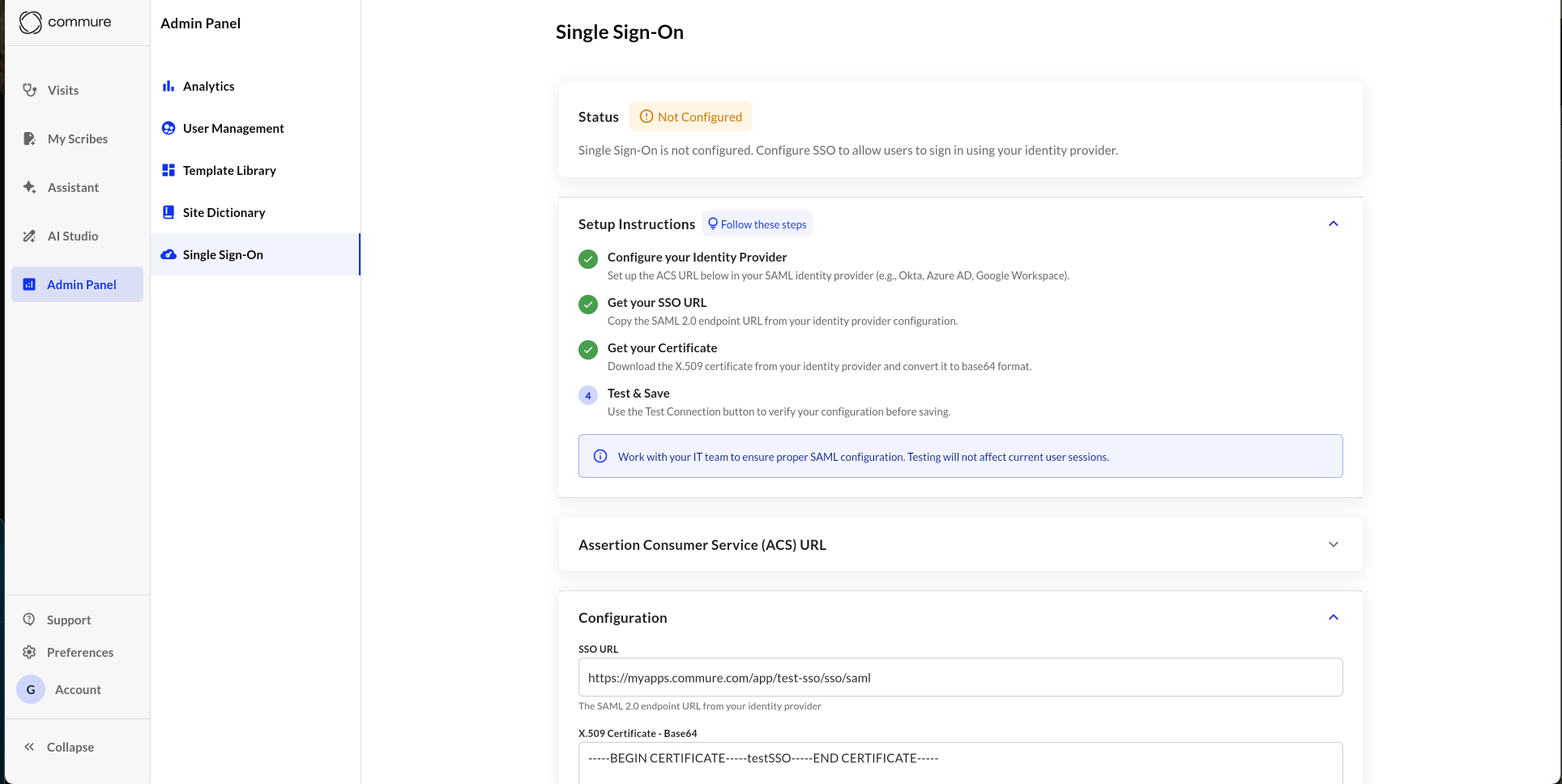 ## Setup Process
1. **Open the Admin Panel**\
Go to **Admin Panel → Single Sign-On**.
2. **Configure Your Identity Provider (IdP)**\
Use the **Assertion Consumer Service (ACS) URL** provided in the app to set up a SAML 2.0 connection in your IdP (e.g., Okta, Azure AD, Google Workspace).
3. **Get Your SSO URL**\
Copy the SAML 2.0 endpoint URL (tenant url) from your IdP and paste it into the **SSO URL** field in the app. This needs to be the *reachable* URL that your providers get directed to.
4. **Get Your Certificate**\
Download the X.509 certificate from your IdP and convert it to **Base64** format. Paste it into the **Certificate** field in the app. Keep the newlines and formatting you get from the base64 version.
5. **Check the Identifier (Entity ID)**
Ensure the entity id is set to `https://rcm-api.athelas.com/v1/scribe`. For majority of sites this will be correct. If your site is located outside the United States, please reach out to us to verify.
6. **Test the Connection**\
Use the **Test with Your User Account** button to verify that your SSO configuration is correct.\
This is a **safe test** that will not affect existing user sessions.
## Setup Process
1. **Open the Admin Panel**\
Go to **Admin Panel → Single Sign-On**.
2. **Configure Your Identity Provider (IdP)**\
Use the **Assertion Consumer Service (ACS) URL** provided in the app to set up a SAML 2.0 connection in your IdP (e.g., Okta, Azure AD, Google Workspace).
3. **Get Your SSO URL**\
Copy the SAML 2.0 endpoint URL (tenant url) from your IdP and paste it into the **SSO URL** field in the app. This needs to be the *reachable* URL that your providers get directed to.
4. **Get Your Certificate**\
Download the X.509 certificate from your IdP and convert it to **Base64** format. Paste it into the **Certificate** field in the app. Keep the newlines and formatting you get from the base64 version.
5. **Check the Identifier (Entity ID)**
Ensure the entity id is set to `https://rcm-api.athelas.com/v1/scribe`. For majority of sites this will be correct. If your site is located outside the United States, please reach out to us to verify.
6. **Test the Connection**\
Use the **Test with Your User Account** button to verify that your SSO configuration is correct.\
This is a **safe test** that will not affect existing user sessions.
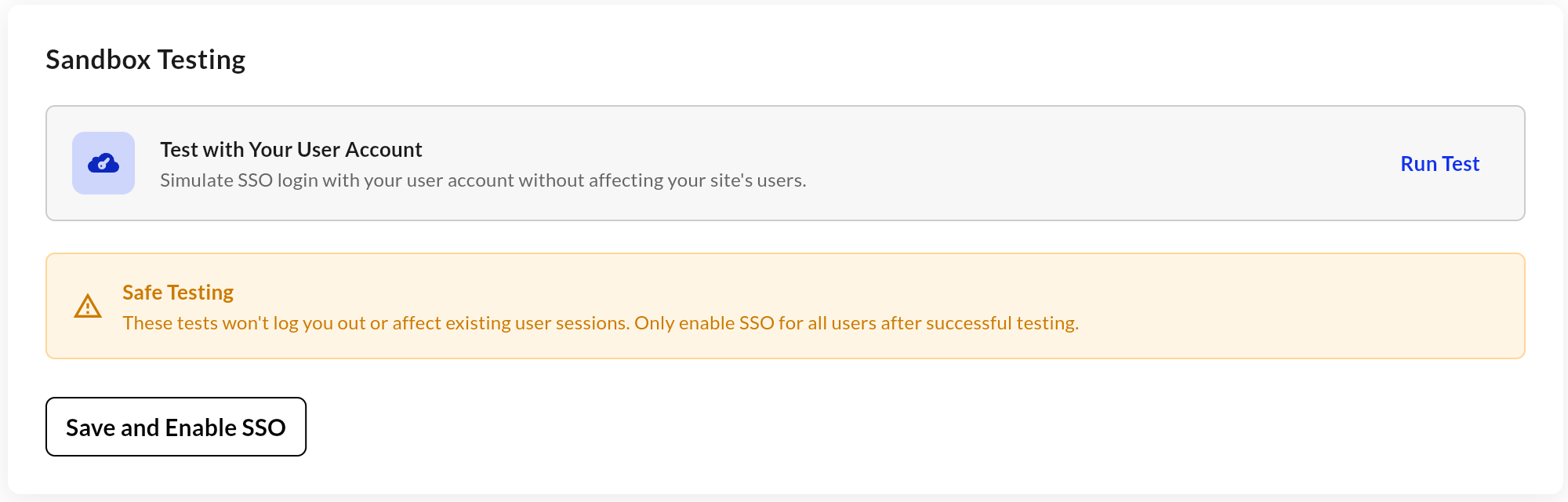 7. **Save and Enable**\
Once testing succeeds, click **Save and Enable SSO** to activate SSO for all users on your site.
***
## Required SAML Configuration
Your IdP’s **SAML Response** must include the following exact attributes names:
* `NameID` → user.userprincipalname (default)
* `email` → user.mail (or whichever attribute your site standardizes against for a user's email)
Both are required.\
Without these attributes, SSO login will fail. Please confirm your IdP is configured to send them.
***
## ACS URL
You will see a copyable text box with the endpoint your IdP will use to send SAML responses.\
It will look something like this:
7. **Save and Enable**\
Once testing succeeds, click **Save and Enable SSO** to activate SSO for all users on your site.
***
## Required SAML Configuration
Your IdP’s **SAML Response** must include the following exact attributes names:
* `NameID` → user.userprincipalname (default)
* `email` → user.mail (or whichever attribute your site standardizes against for a user's email)
Both are required.\
Without these attributes, SSO login will fail. Please confirm your IdP is configured to send them.
***
## ACS URL
You will see a copyable text box with the endpoint your IdP will use to send SAML responses.\
It will look something like this:
 Use this exact value from the Admin Panel in your IdP’s **Reply URL**, **Assertion Consumer Service URL**, or **ACS endpoint** configuration.
***
## Testing and Enabling
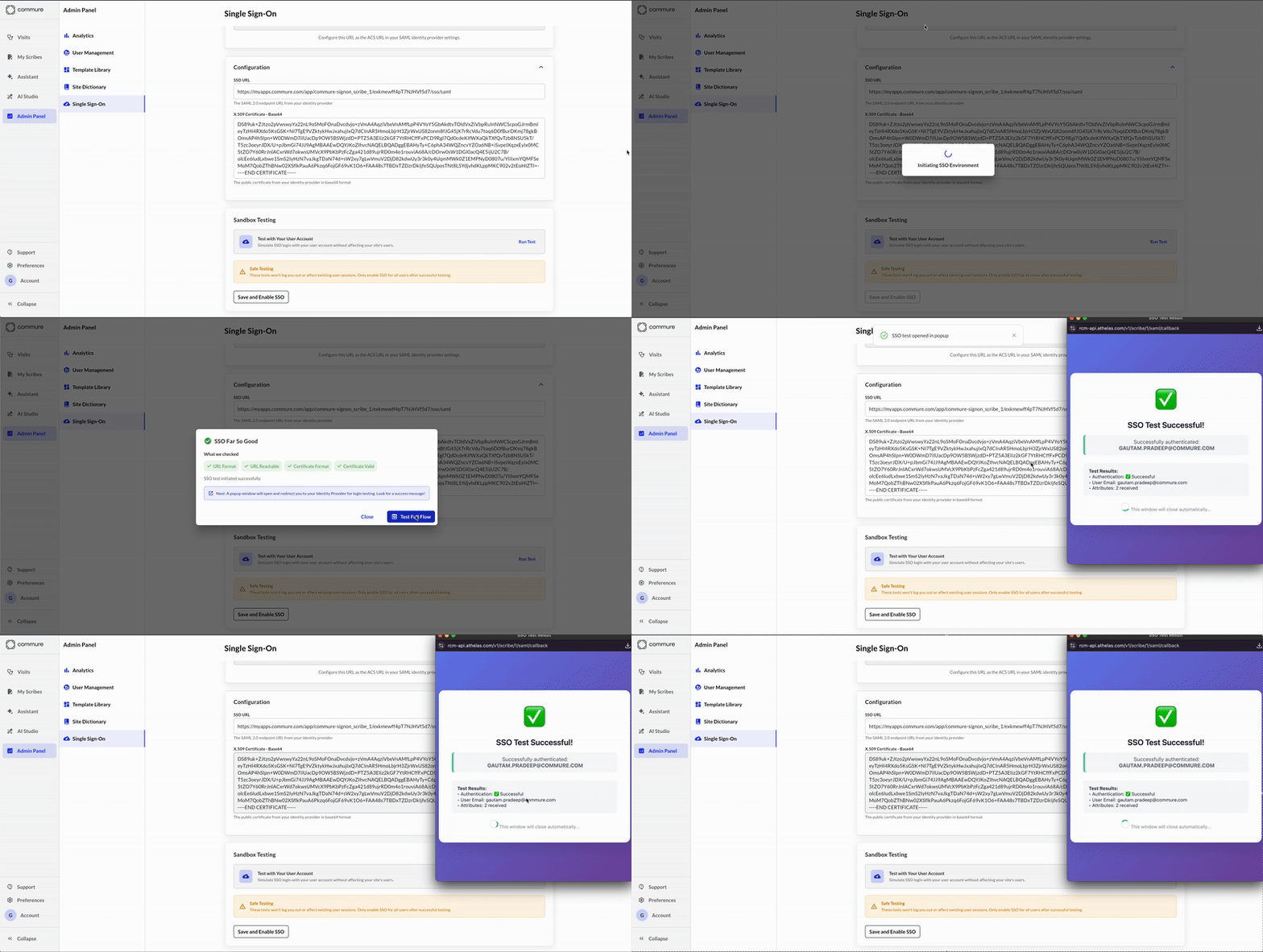
* Click **Run Test** to verify your SSO configuration.
* The test uses your current user account and will **not** log you out or disrupt other users.
* Once the test succeeds, click **Save and Enable SSO** to activate it for your entire site.
> **Tip:** Work with your IT team to ensure proper SAML configuration before enabling SSO globally.
***
Use this exact value from the Admin Panel in your IdP’s **Reply URL**, **Assertion Consumer Service URL**, or **ACS endpoint** configuration.
***
## Testing and Enabling
* Click **Run Test** to verify your SSO configuration.
* The test uses your current user account and will **not** log you out or disrupt other users.
* Once the test succeeds, click **Save and Enable SSO** to activate it for your entire site.
> **Tip:** Work with your IT team to ensure proper SAML configuration before enabling SSO globally.
***
 ## Supported Identity Providers
We support any IdP compliant with **SAML 2.0**, including:
* Okta
* Microsoft Entra ID (Azure AD)
* Google Workspace
* Auth0
* OneLogin
***
## Security
* All SAML communications are **encrypted in transit** using HTTPS.
* Certificates are stored **securely and encrypted**.
***
## Troubleshooting
* Ensure your IdP is passing in **email** and **NameID** exactly as specified above.
* Double-check that your **ACS URL** matches what’s shown in the Admin Panel. Otherwise, it might silently fail because we can't even reach your side.
* If testing fails, verify the **SSO URL** is reachable, formatted correctly, and that the certificate is valid (not expired or malformed).
***
If you are experiencing an issue that is not listed here, please reach out to our [support team](mailto:support@ambient.commure.com) so we can help you resolve it.
## Supported Identity Providers
We support any IdP compliant with **SAML 2.0**, including:
* Okta
* Microsoft Entra ID (Azure AD)
* Google Workspace
* Auth0
* OneLogin
***
## Security
* All SAML communications are **encrypted in transit** using HTTPS.
* Certificates are stored **securely and encrypted**.
***
## Troubleshooting
* Ensure your IdP is passing in **email** and **NameID** exactly as specified above.
* Double-check that your **ACS URL** matches what’s shown in the Admin Panel. Otherwise, it might silently fail because we can't even reach your side.
* If testing fails, verify the **SSO URL** is reachable, formatted correctly, and that the certificate is valid (not expired or malformed).
***
If you are experiencing an issue that is not listed here, please reach out to our [support team](mailto:support@ambient.commure.com) so we can help you resolve it.