> ## Documentation Index
> Fetch the complete documentation index at: https://docs.ambient.commure.com/llms.txt
> Use this file to discover all available pages before exploring further.
# Admin Panel
> Monitor scribe performance and engagement across your organization.
## Analytics Overview
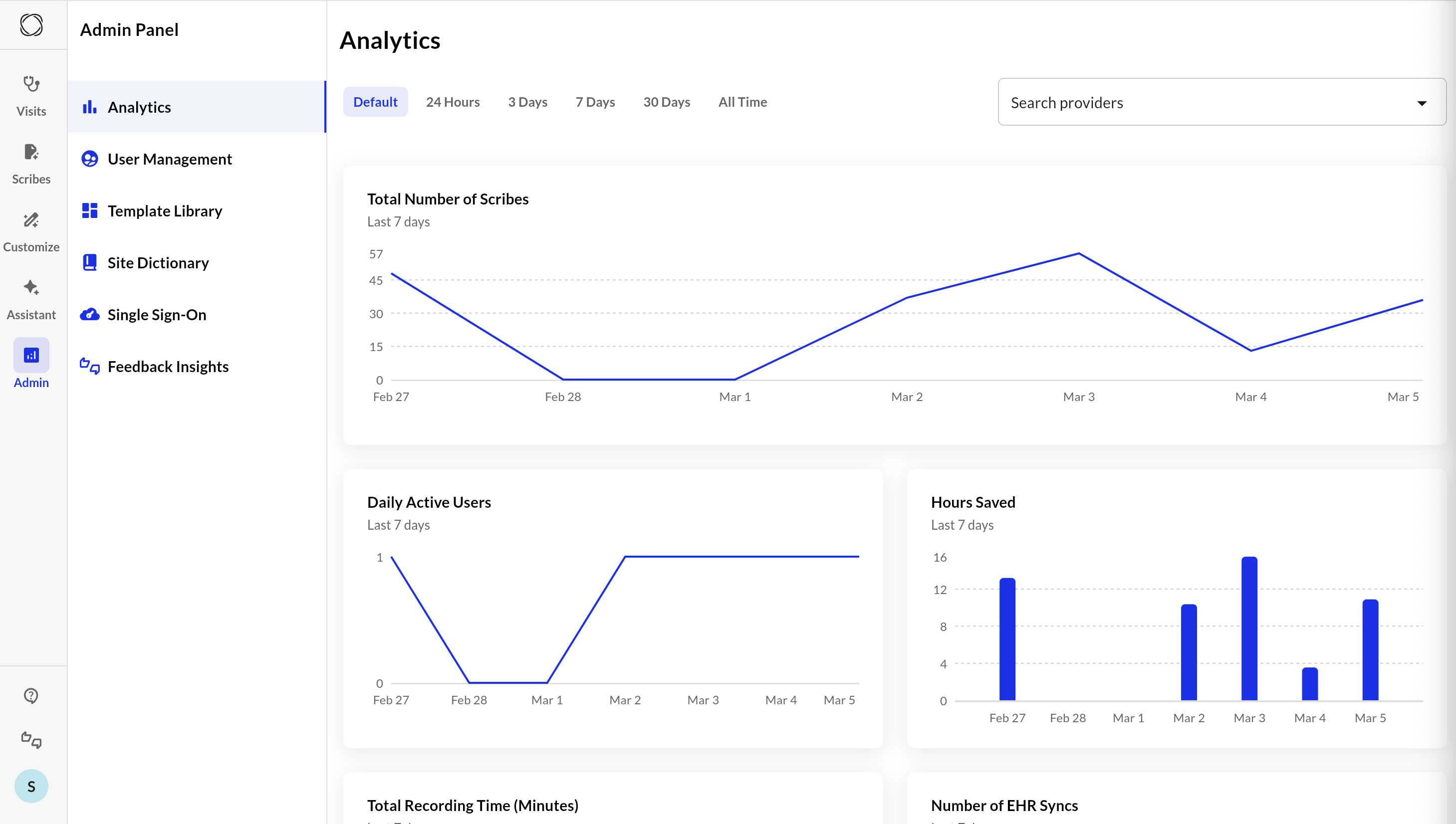
The **Analytics** tab in the Admin Panel gives you a powerful dashboard to monitor activity, performance, and usage trends across your scribe operations. This section enables administrators to assess the effectiveness of the AI scribe solution, user engagement, and template utilization.
 ***
### Time Range Filters
At the top of the Analytics section, you can select a time filter to adjust the data range displayed:
* **Default** (last 7 days)
* **3 Days**
* **7 Days**
* **30 Days**
* **All Time**
You can also search by provider using the search bar for provider-specific insights.
***
### Core Metrics
#### **Total Number of Scribes**
Visualizes how many scribe notes were generated each day over the selected time range.
#### **Daily Active Users**
Shows the number of unique users who used the system daily.
#### **Hours Saved**
Estimates time saved based on note generation, updated daily.
#### **Total Recording Time (Minutes)**
Tracks the total audio recording duration over the selected period.
#### **Number of EHR Syncs**
Monitors the number of successfully synced notes to the EHR.
***
### 30-Day and All-Time Summaries
* **Total Scribe Count (Last 30 Days / All Time)**: High-level view of scribe volume.
* **Custom Formatting Usage**: How many providers have used custom formatting templates in the past 30 days.
* **Average Patient Encounter Length**: Reflects average time spent per encounter (from recording).
***
### Template Usage Breakdown
Displays the most frequently used templates and how often they’re selected. Use this to understand documentation preferences and adjust templates as needed.
***
### Provider Usage
Ranks providers by:
* Number of scribes generated
* Hours saved
This helps identify power users and track return on investment for high-volume providers.
***
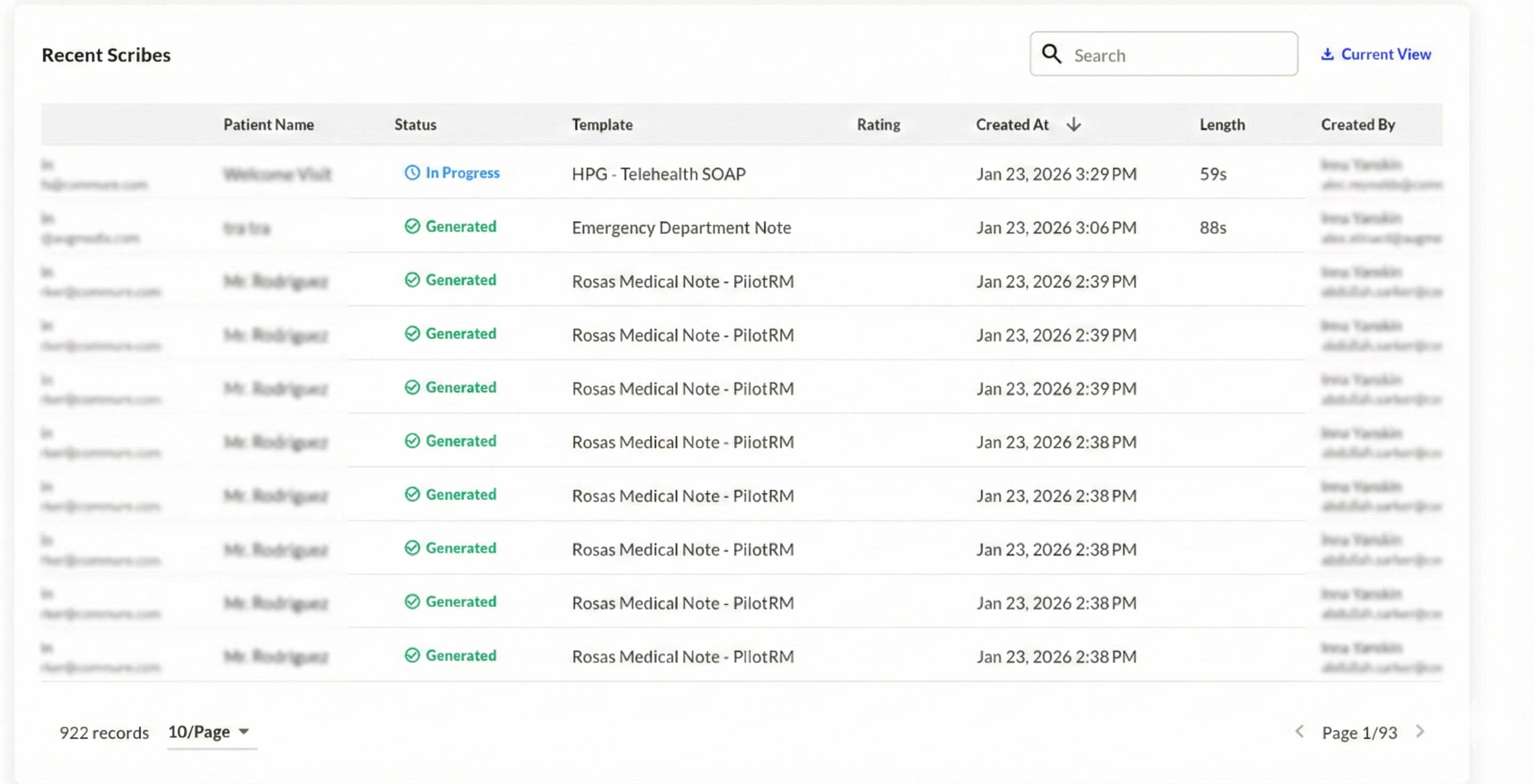
### Recent Scribes
A log of recently generated notes, including:
* Provider name
* Patient name
* Note status
* Template used
Clicking a record opens the full note content, including SOAP structure, prescription, CPT/ICD-10 codes, and transcripts.
***
### Example Note View
Each generated note includes:
* **SOAP Note**: Structured clinical documentation
* **CPT and ICD-10 Codes**: Medical coding
* **Prescription Details**
* **Transcript (if applicable)**
You can also **Copy All** to quickly export the content for EMR input or review.
### Export Admin Panel Data
**Full CSV Export:** Admins can now download the entire dataset for a selected period rather than just the currently visible paginated page.
* The "Current View" button transforms into a loading icon during the generation of large files.
***
### Time Range Filters
At the top of the Analytics section, you can select a time filter to adjust the data range displayed:
* **Default** (last 7 days)
* **3 Days**
* **7 Days**
* **30 Days**
* **All Time**
You can also search by provider using the search bar for provider-specific insights.
***
### Core Metrics
#### **Total Number of Scribes**
Visualizes how many scribe notes were generated each day over the selected time range.
#### **Daily Active Users**
Shows the number of unique users who used the system daily.
#### **Hours Saved**
Estimates time saved based on note generation, updated daily.
#### **Total Recording Time (Minutes)**
Tracks the total audio recording duration over the selected period.
#### **Number of EHR Syncs**
Monitors the number of successfully synced notes to the EHR.
***
### 30-Day and All-Time Summaries
* **Total Scribe Count (Last 30 Days / All Time)**: High-level view of scribe volume.
* **Custom Formatting Usage**: How many providers have used custom formatting templates in the past 30 days.
* **Average Patient Encounter Length**: Reflects average time spent per encounter (from recording).
***
### Template Usage Breakdown
Displays the most frequently used templates and how often they’re selected. Use this to understand documentation preferences and adjust templates as needed.
***
### Provider Usage
Ranks providers by:
* Number of scribes generated
* Hours saved
This helps identify power users and track return on investment for high-volume providers.
***
### Recent Scribes
A log of recently generated notes, including:
* Provider name
* Patient name
* Note status
* Template used
Clicking a record opens the full note content, including SOAP structure, prescription, CPT/ICD-10 codes, and transcripts.
***
### Example Note View
Each generated note includes:
* **SOAP Note**: Structured clinical documentation
* **CPT and ICD-10 Codes**: Medical coding
* **Prescription Details**
* **Transcript (if applicable)**
You can also **Copy All** to quickly export the content for EMR input or review.
### Export Admin Panel Data
**Full CSV Export:** Admins can now download the entire dataset for a selected period rather than just the currently visible paginated page.
* The "Current View" button transforms into a loading icon during the generation of large files.
 ***
## User Management Overview
The **User Management** tab allows administrators to create, manage, and configure user accounts within the system. This includes assigning facilities, setting medical specialties, and managing templates or formatting preferences for each provider.
***
## User Management Overview
The **User Management** tab allows administrators to create, manage, and configure user accounts within the system. This includes assigning facilities, setting medical specialties, and managing templates or formatting preferences for each provider.
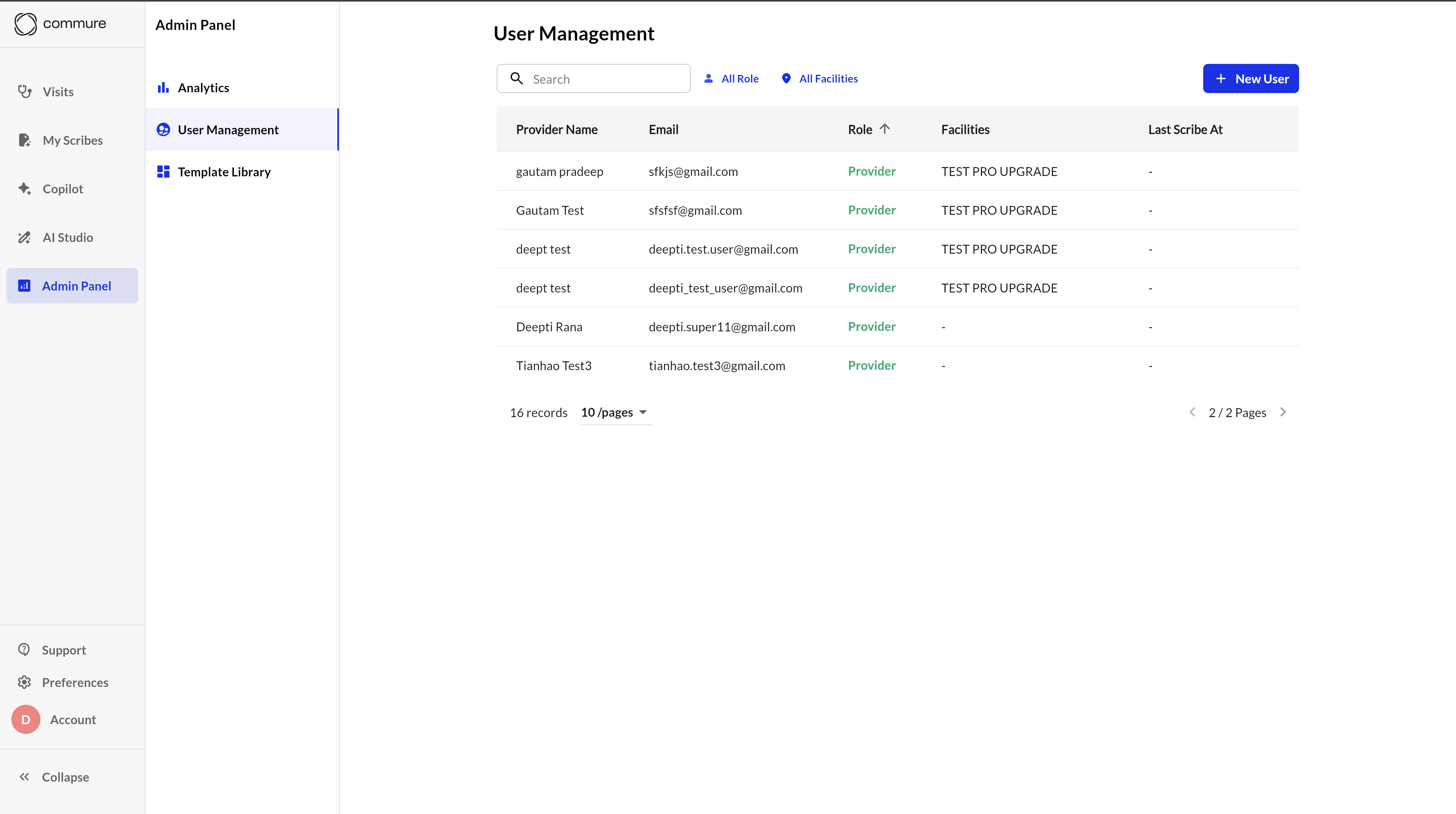 ***
### User Directory
The main user table displays a searchable, sortable list of all registered users.
**Columns include:**
* **Provider Name**
* **Email**
* **Role** (e.g. Admin)
* **Facilities** (if assigned)
* **Last Scribe At** – the most recent scribe activity timestamp
Use the filters above the table to refine results by role or facility.
***
### Adding a New User
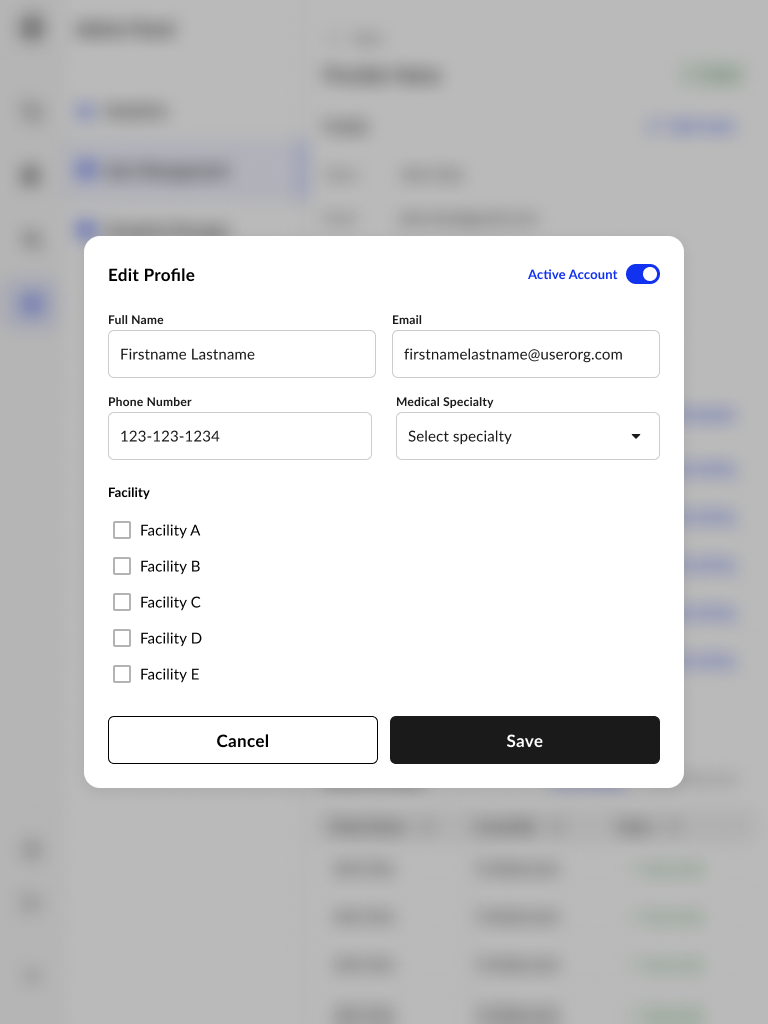
Click the **"New User"** button to open the user creation form.
**Fields:**
* **Full Name**
* **Email** (required for login)
* **Phone Number**
* **Medical Specialty** (dropdown)
* **Facility Assignment** (select one or more)
* **Account Status Toggle** – controls whether the user is active
Click **Save** to add the user. They’ll then appear in the main directory.
***
### User Directory
The main user table displays a searchable, sortable list of all registered users.
**Columns include:**
* **Provider Name**
* **Email**
* **Role** (e.g. Admin)
* **Facilities** (if assigned)
* **Last Scribe At** – the most recent scribe activity timestamp
Use the filters above the table to refine results by role or facility.
***
### Adding a New User
Click the **"New User"** button to open the user creation form.
**Fields:**
* **Full Name**
* **Email** (required for login)
* **Phone Number**
* **Medical Specialty** (dropdown)
* **Facility Assignment** (select one or more)
* **Account Status Toggle** – controls whether the user is active
Click **Save** to add the user. They’ll then appear in the main directory.
 Adding a new user does not automatically configure them with the correct features or upgrade them to have unlimited scribes - doing so requires a representative from Commure.
***********To deactivate users, you can toggle a user to a deactivated state via the User Management tab in the Admin Panel.***********
***
### User Profile View
Clicking a user entry opens a detailed profile, including:
**Profile Section:**
* Full Name, Email, Phone
* Specialty & Facility info (if set)
* Account status (Active/Inactive)
* Option to **Edit Profile**
**Templates Section:** Displays all templates available to the user, with options to:
* **Add Template**
* Set **Custom Formatting**
* View **Rules Set** if predefined logic is applied
**Recent Scribes:** This section shows a log of recently generated notes by the user.
***
## Template Library Overview
The **Template Library** allows administrators to manage the standardized note formats used across the platform. Templates can be assigned to providers, customized per user, and sorted by usage.
Adding a new user does not automatically configure them with the correct features or upgrade them to have unlimited scribes - doing so requires a representative from Commure.
***********To deactivate users, you can toggle a user to a deactivated state via the User Management tab in the Admin Panel.***********
***
### User Profile View
Clicking a user entry opens a detailed profile, including:
**Profile Section:**
* Full Name, Email, Phone
* Specialty & Facility info (if set)
* Account status (Active/Inactive)
* Option to **Edit Profile**
**Templates Section:** Displays all templates available to the user, with options to:
* **Add Template**
* Set **Custom Formatting**
* View **Rules Set** if predefined logic is applied
**Recent Scribes:** This section shows a log of recently generated notes by the user.
***
## Template Library Overview
The **Template Library** allows administrators to manage the standardized note formats used across the platform. Templates can be assigned to providers, customized per user, and sorted by usage.
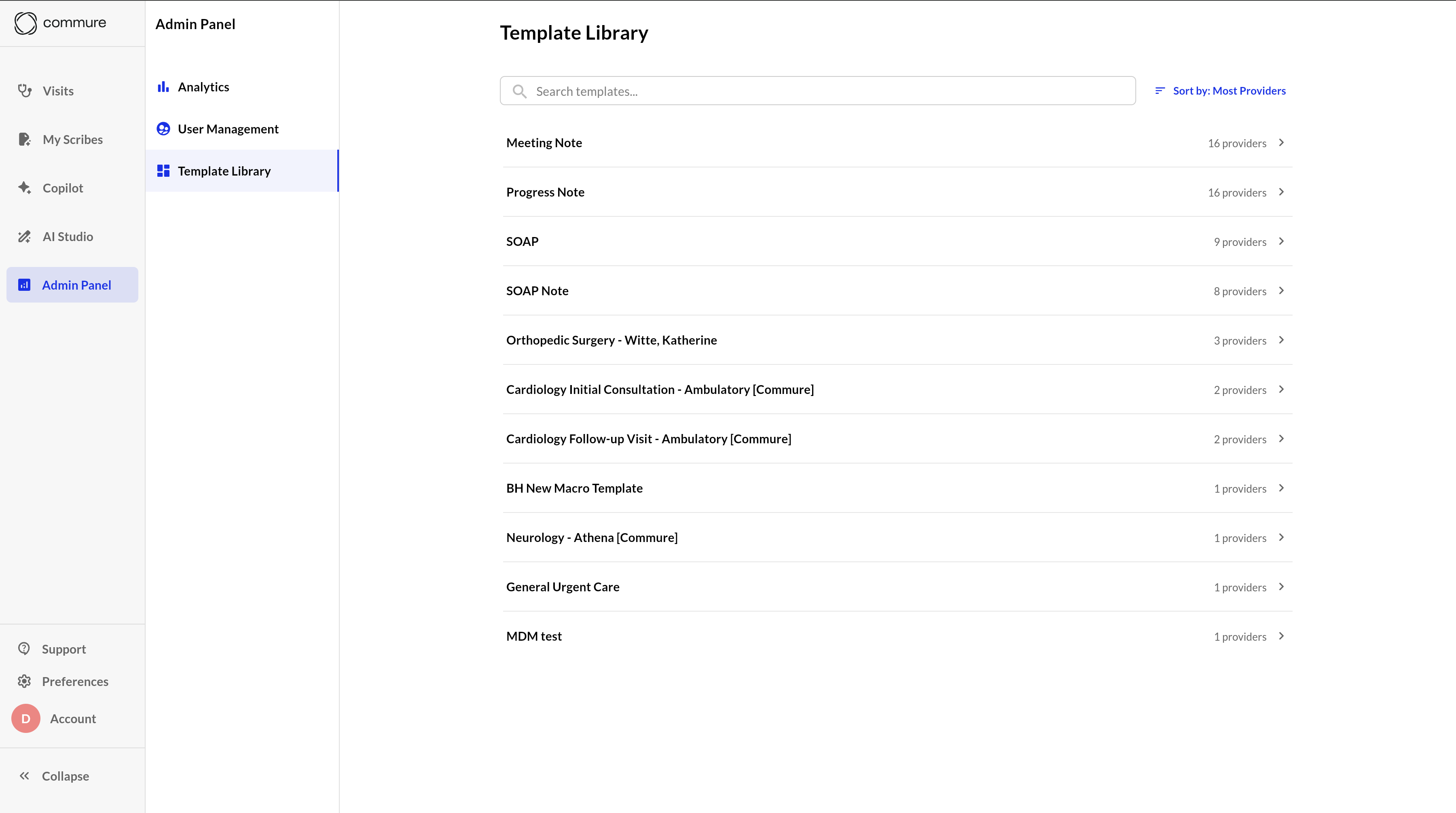 ### Browsing Templates
The main Template Library view displays all available templates along with the number of providers currently using each one. You can:
* **Search templates** using the search bar.
* **Sort templates** by usage (e.g., most providers).
Common templates include:
* Meeting Note
* Progress Note
* SOAP Note
* BIRP Note
* Customizable Templates
Click on a template to manage its provider list and formatting options.
***
### Managing Template Access
### Browsing Templates
The main Template Library view displays all available templates along with the number of providers currently using each one. You can:
* **Search templates** using the search bar.
* **Sort templates** by usage (e.g., most providers).
Common templates include:
* Meeting Note
* Progress Note
* SOAP Note
* BIRP Note
* Customizable Templates
Click on a template to manage its provider list and formatting options.
***
### Managing Template Access
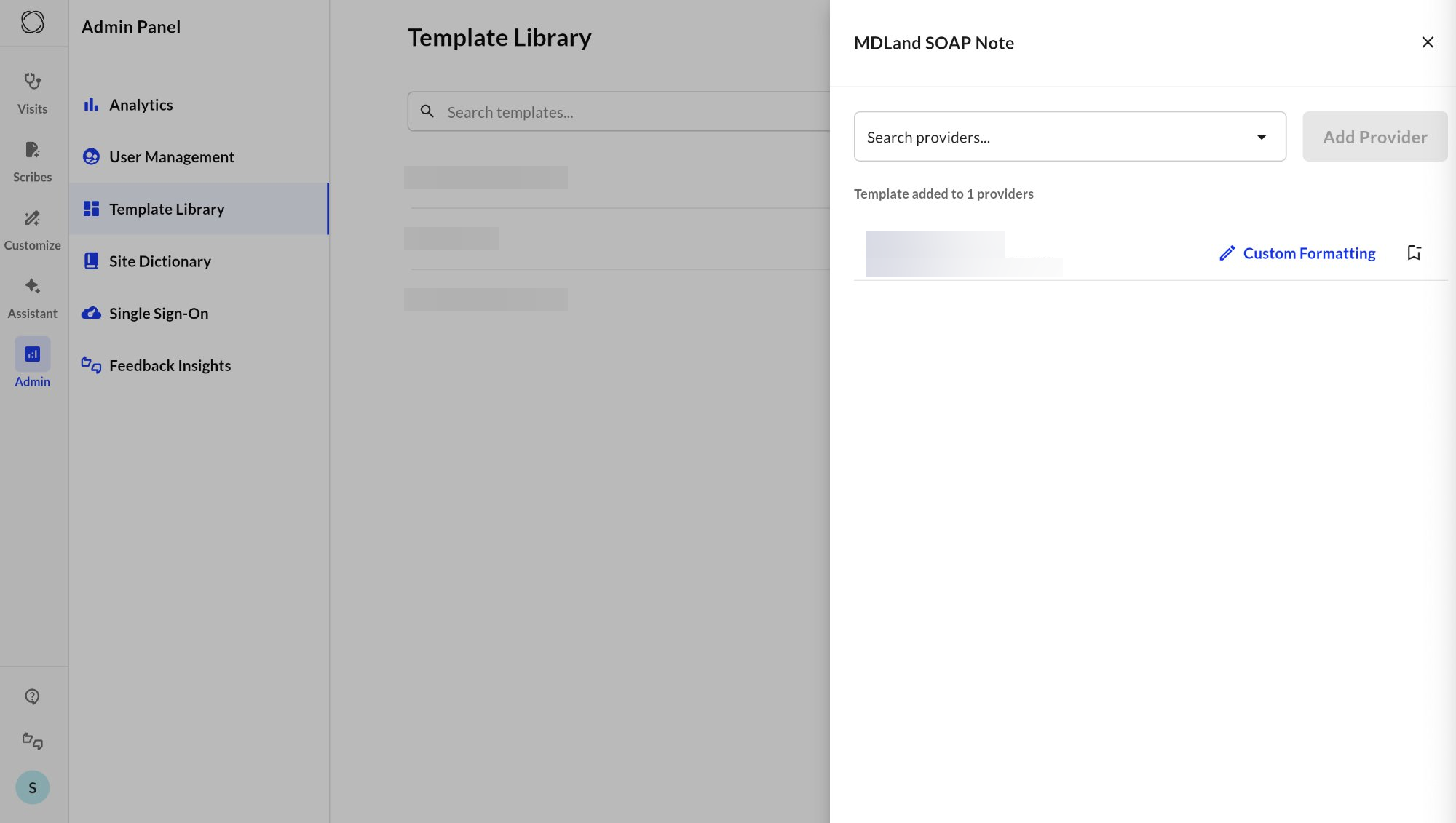 Clicking on a template opens the provider management view for that specific template. From here, you can:
* **Search for providers** already using the template
* **Add new providers** to the template
* **Configure Custom Formatting** for individual providers using the *Custom Formatting* link
* View the full list of users assigned to this template (with email for reference)
At the top, you’ll see how many providers are currently assigned (e.g., “Template added to 339 providers”).
***
### Custom Formatting
Clicking on a template opens the provider management view for that specific template. From here, you can:
* **Search for providers** already using the template
* **Add new providers** to the template
* **Configure Custom Formatting** for individual providers using the *Custom Formatting* link
* View the full list of users assigned to this template (with email for reference)
At the top, you’ll see how many providers are currently assigned (e.g., “Template added to 339 providers”).
***
### Custom Formatting
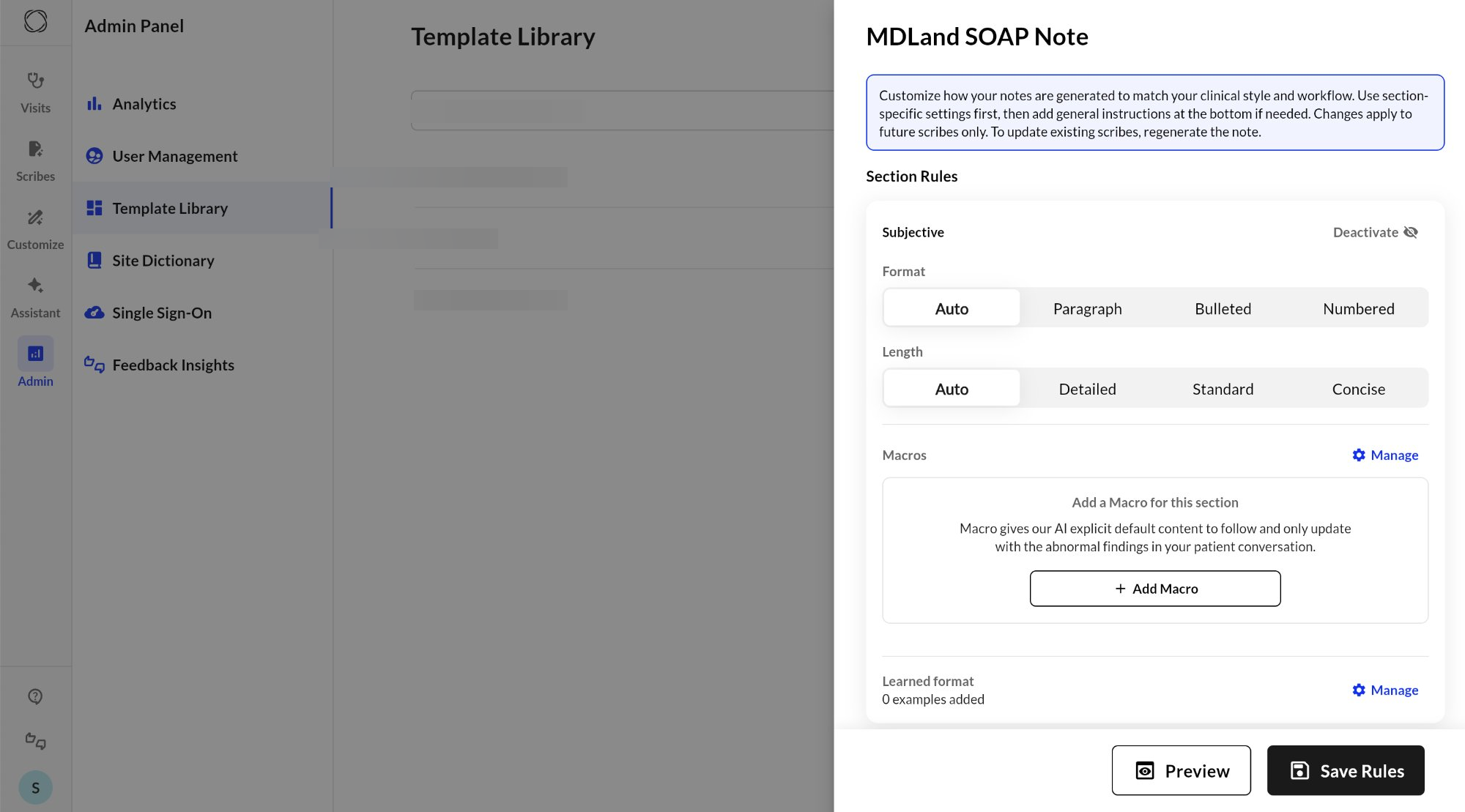 Each provider assigned to a template can have a unique version of it via **Custom Formatting**. This ensures that notes are aligned to provider-specific documentation preferences or workflows.
Admins can:
* Edit template structure (headers, formatting, default language)
* Set logic or rules for dynamic text sections
* Configure conditional phrasing or variable inclusion
***
### Support
Please reach out to [support@ambient.commure.com](mailto:support@ambient.commure.com) to expand your liscence account, or to enable features or unlimited scribes on a newly created account.
For more information on details how to this up, please contact sales or your customer support manager.
Each provider assigned to a template can have a unique version of it via **Custom Formatting**. This ensures that notes are aligned to provider-specific documentation preferences or workflows.
Admins can:
* Edit template structure (headers, formatting, default language)
* Set logic or rules for dynamic text sections
* Configure conditional phrasing or variable inclusion
***
### Support
Please reach out to [support@ambient.commure.com](mailto:support@ambient.commure.com) to expand your liscence account, or to enable features or unlimited scribes on a newly created account.
For more information on details how to this up, please contact sales or your customer support manager.