> ## Documentation Index
> Fetch the complete documentation index at: https://docs.ambient.commure.com/llms.txt
> Use this file to discover all available pages before exploring further.
# Ambient Mic
Commure Ambient allows you to use your **phone as a wireless microphone** for dictation — no external hardware required. Instead of using a Powermic or SpeechMike, you can dictate directly into the **Commure Desktop App** using the **Commure Ambient mobile app**. You can:
* Use your phone as a real-time dictation microphone
* Insert text directly at your desktop's cursor in the EHR
* Access shortcuts and voice commands
* View and trigger macros
* Record from anywhere in the room without being tethered to a device
# Set Up Instructions
1. Open the **Commure Desktop App** on your Windows computer.
2. Open the **Commure Ambient app** on your phone.
3. Navigate to the **Dictation** tab in the mobile app.
4. Ensure both devices are:
* On the same WiFi network
* Logged in with the same email
Once connected, you will see the mobile device indicate that it is paired with your desktop.
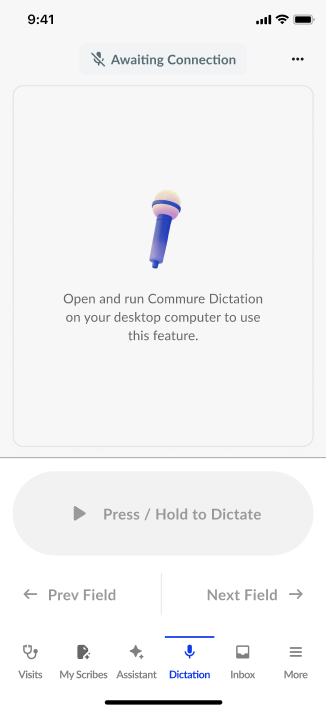 If you do not see a connection:
* Confirm both devices are on the same WiFi
* Confirm the desktop app is open
* Log out and back in on both devices if needed
# Using the Dictation Tab
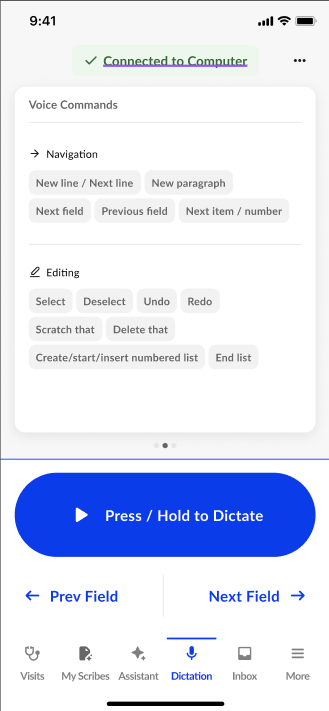
The **Dictation** tab on mobile is your control center for Mobile Mic.
From here, you can:
### 🎙 Record
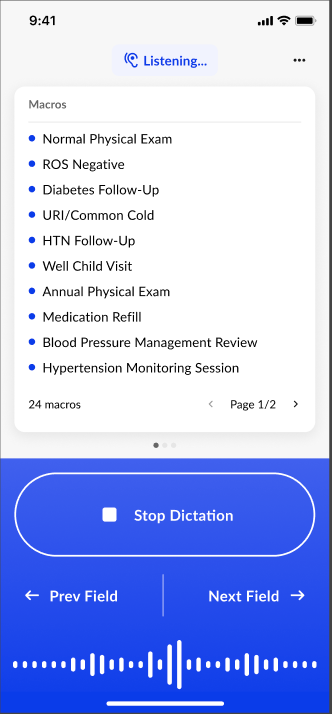
Tap the record button to begin dictating.\
Text will insert wherever your cursor is placed in the EHR or notepad.
If you do not see a connection:
* Confirm both devices are on the same WiFi
* Confirm the desktop app is open
* Log out and back in on both devices if needed
# Using the Dictation Tab
The **Dictation** tab on mobile is your control center for Mobile Mic.
From here, you can:
### 🎙 Record
Tap the record button to begin dictating.\
Text will insert wherever your cursor is placed in the EHR or notepad.
 ### ⚡ Use Shortcuts
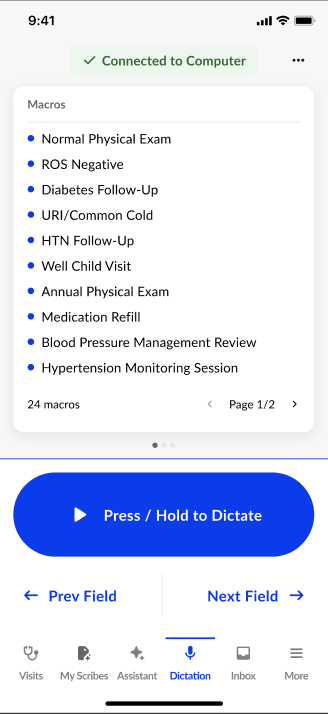
Access quick dictation controls such as:
* Start/stop recording
* Insert formatting commands
* Macros
* Voice commands
### ⚡ Use Shortcuts
Access quick dictation controls such as:
* Start/stop recording
* Insert formatting commands
* Macros
* Voice commands
 ### 🧪 Try Contextual Edit
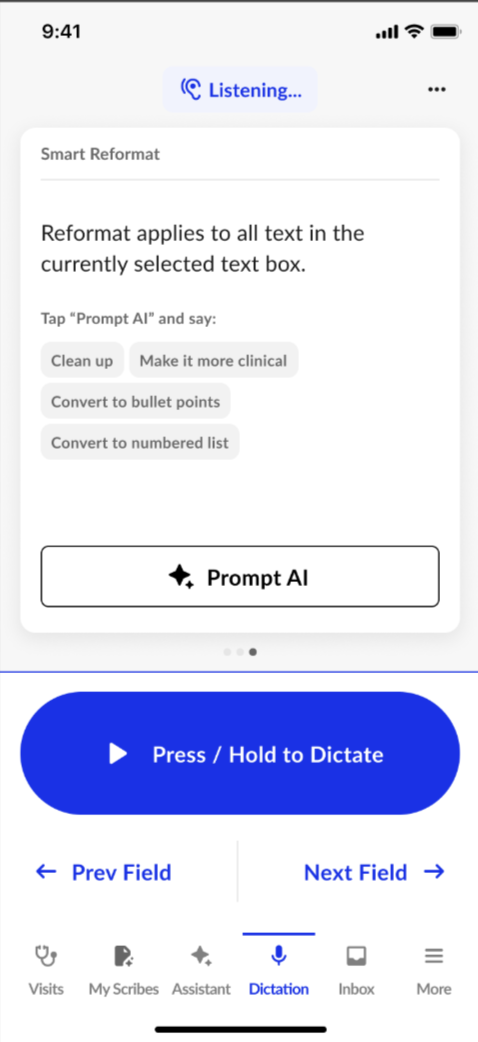
Swipe to the third screen to try Contextual Edit. Press the button to start the engine, verbalize your instructions, and then press the button again to submit the request. Watch your changes happen on your desktop!
### 🧪 Try Contextual Edit
Swipe to the third screen to try Contextual Edit. Press the button to start the engine, verbalize your instructions, and then press the button again to submit the request. Watch your changes happen on your desktop!