> ## Documentation Index
> Fetch the complete documentation index at: https://docs.ambient.commure.com/llms.txt
> Use this file to discover all available pages before exploring further.
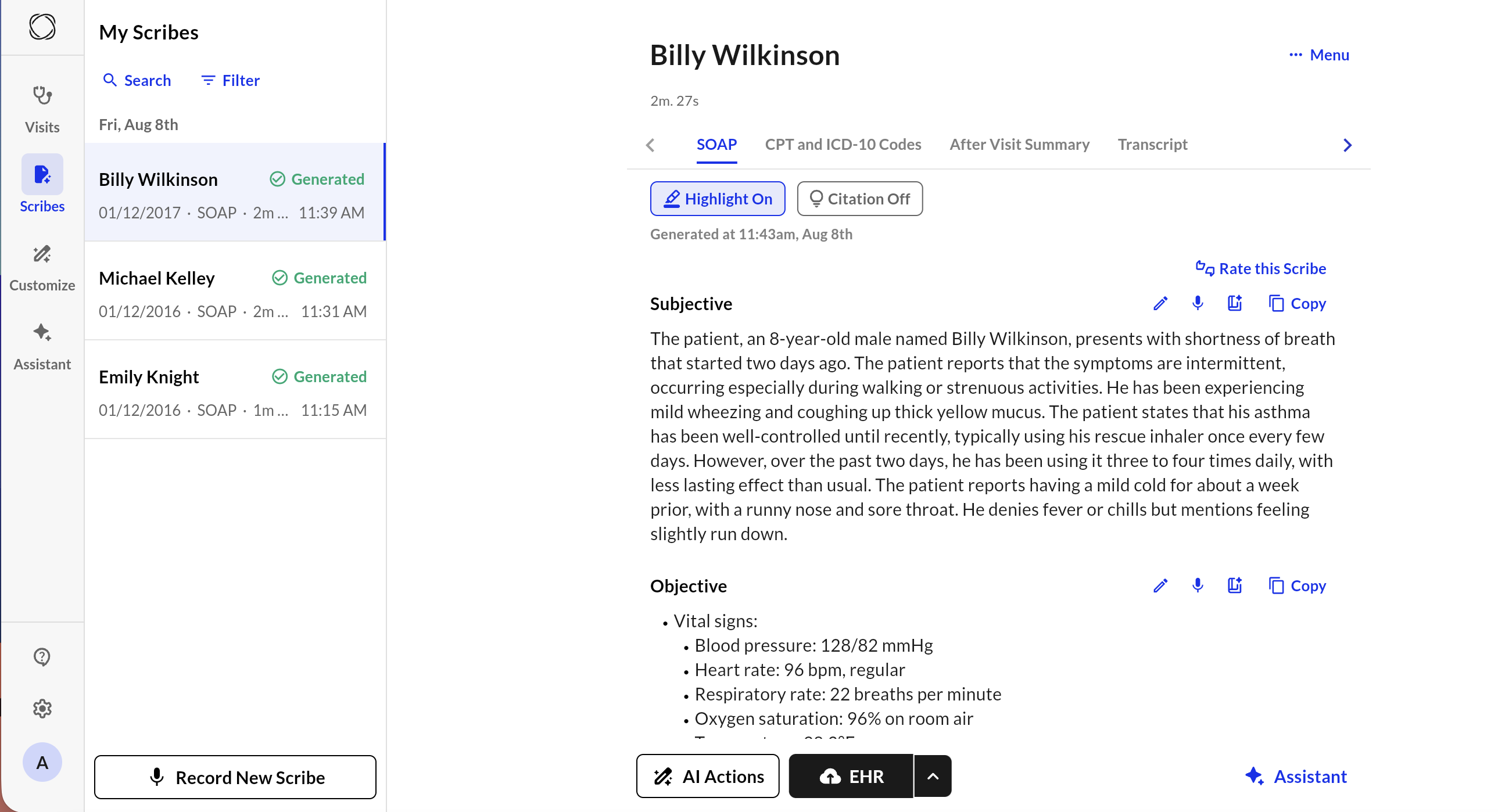
# My Scribes
> View and manage your previously generated notes.
My Scribes is where all your historical Scribes will be stored and accessed. To see what you can do after creating a scribe, check-out at [Scribe Actions](/basics/scribe-actions).
### Search and filter
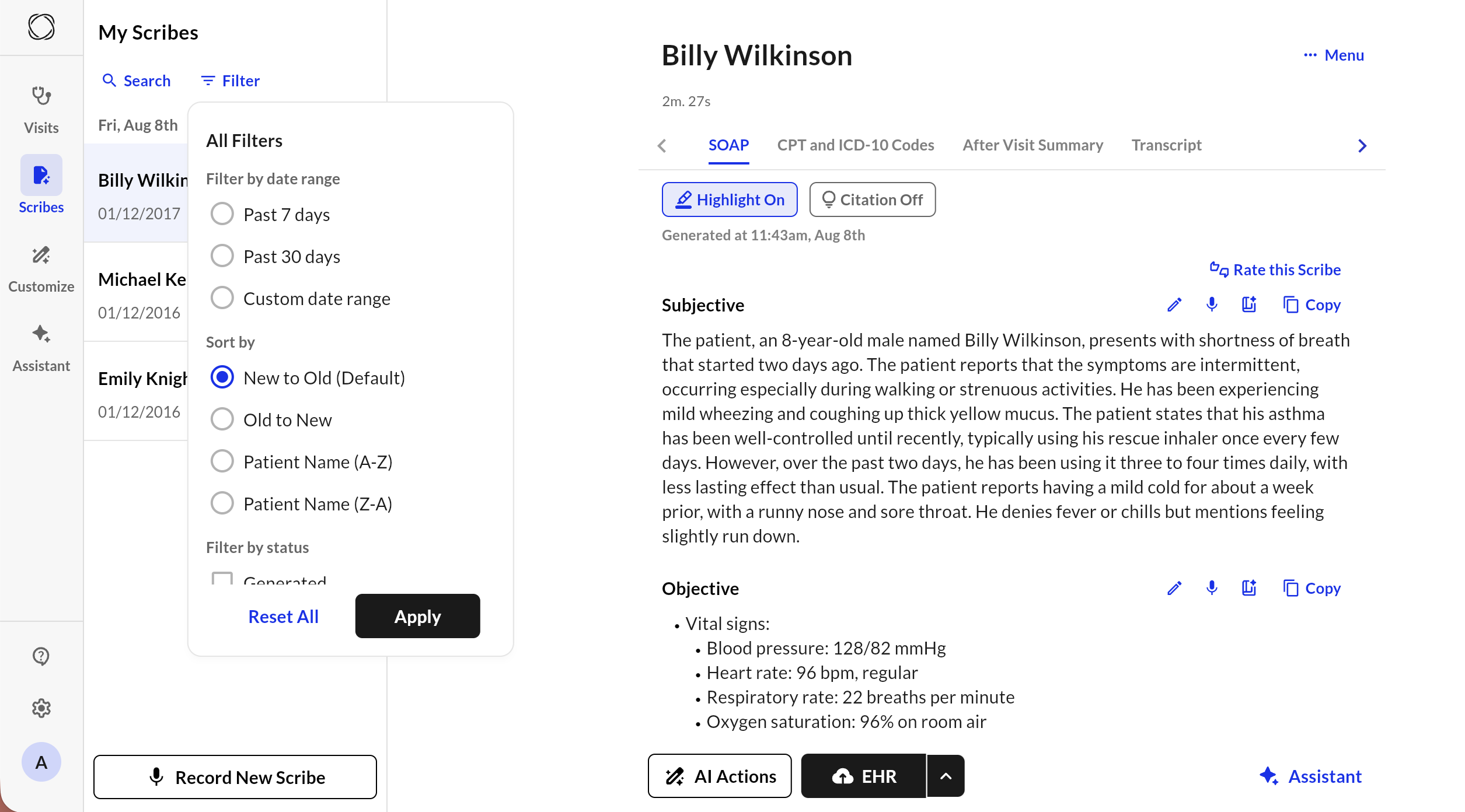
You can find a specific Scribe by clicking "Search" and then searching the patient name. Alternatively, you can filter based on date range, sorting, or status of the Scribe.
### CPT and ICD 10 Codes
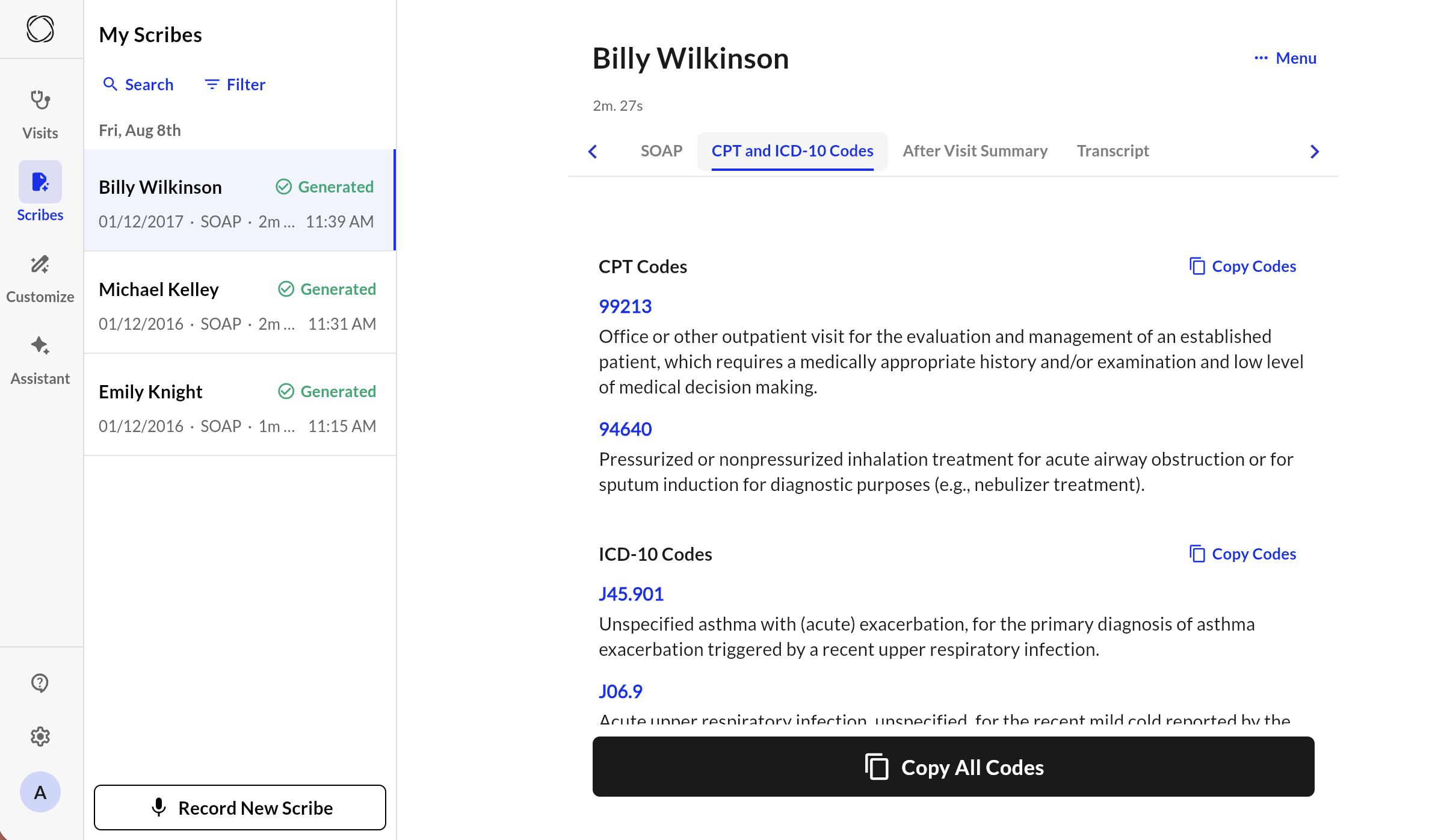
**Tab Level**: Commure Ambient can generate a list of CPT and ICD-10 codes based on what was discussed.
**Note Level** : View predicted codes or search by description to find the exact match you need.
* Navigate the **dropdown** using the mouse or keystrokes to **select** and **save** the correct code.
### Transcript Tab
Transcripts are only visible to authorized users and are stored securely to comply with HIPAA and patient privacy standards.
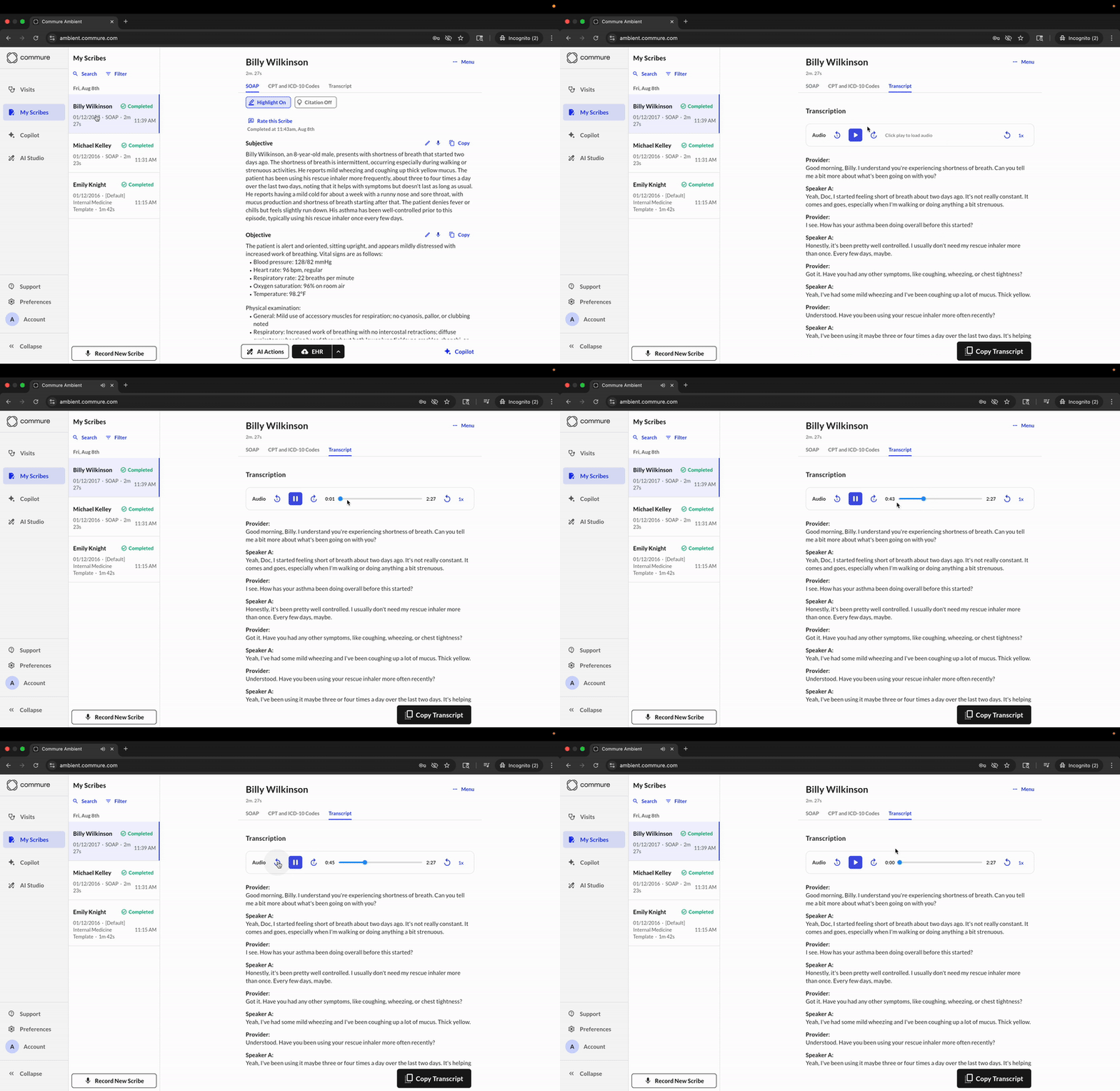
The **Transcript** tab gives you full visibility into the raw conversation that occurred during a recorded visit. It includes speaker-separated dialogue, time-aligned playback, and a copyable version of the full transcript.
#### Key Features
* **Audio Playback** Use the audio player at the top to listen to the visit in real time. Playback controls let you:
* Play/pause the recording
* Adjust playback speed
* Reload the audio
* **Diarization**
* Transcripts display speakers as **Speaker 1**, **Speaker 2**, etc. Each turn in the conversation is timestamp-aligned with the audio.
* **Copy Transcript**
* Click **"Copy Transcript"** to copy the entire transcript for external reference, EMR documentation, or follow-up.
***
### Scribe Statuses
| **Status** | **Description** |
| :------------- | :----------------------------------------------------------------------------------------------------------------------------------------------------------------------------------------------------------------------------------------------------------------------------------------------------------------------- |
| **Uploading** | The scribe is currently uploading the audio or data. A progress percentage is displayed to indicate the upload status. If the upload takes more than 30 seconds, the status automatically changes to “Offline.” |
| **Offline** | This status appears when the upload has taken longer than 30 seconds, possibly due to a network delay or issue. The user may be prompted to retry the upload using cached audio data if available. |
| **Processing** | The audio has been uploaded and is now being processed by the backend (Commure). The AI model is actively generating the note based on the uploaded content. |
| **Generated** | The note has been successfully generated by the AI model and is now available for review and editing by the user. |
| **In EHR** | The note has been successfully synced with the EHR system. This status confirms that the content is now stored in the medical record. |
| **Error** | A backend error has occurred that prevents the note or part of the note from being generated. The user is encouraged to contact support for assistance. |
| **Syncing** | This status appears when the user initiates synchronization with the Electronic Health Record (EHR) system. It indicates that the syncing process is currently in progress. |
| **Sync Error** | An error occurred during the synchronization process with the EHR. The user may need to retry or contact support. |
| **With MDS** | The note has been sent to the Medical Decision Support (MDS) team or system for further review or action. |
| **Paused** | The visit has been paused. This status appears only in the visit list, not in the “My Scribes” list. The user can click on the paused visit to resume or end it. |
| **Unassigned** | This status is used when a new patient has arrived (e.g., in the emergency department) but has not yet been assigned to a provider within the app. There may be a lag between when a patient is assigned in the EHR and when the app reflects the update. Users can filter the visit list to locate unassigned patients. |
 ### Search and filter
You can find a specific Scribe by clicking "Search" and then searching the patient name. Alternatively, you can filter based on date range, sorting, or status of the Scribe.
### Search and filter
You can find a specific Scribe by clicking "Search" and then searching the patient name. Alternatively, you can filter based on date range, sorting, or status of the Scribe.
 ### CPT and ICD 10 Codes
**Tab Level**: Commure Ambient can generate a list of CPT and ICD-10 codes based on what was discussed.
### CPT and ICD 10 Codes
**Tab Level**: Commure Ambient can generate a list of CPT and ICD-10 codes based on what was discussed.
 **Note Level** : View predicted codes or search by description to find the exact match you need.
* Navigate the **dropdown** using the mouse or keystrokes to **select** and **save** the correct code.
### Transcript Tab
**Note Level** : View predicted codes or search by description to find the exact match you need.
* Navigate the **dropdown** using the mouse or keystrokes to **select** and **save** the correct code.
### Transcript Tab
 ***
### Scribe Statuses
| **Status** | **Description** |
| :------------- | :----------------------------------------------------------------------------------------------------------------------------------------------------------------------------------------------------------------------------------------------------------------------------------------------------------------------- |
| **Uploading** | The scribe is currently uploading the audio or data. A progress percentage is displayed to indicate the upload status. If the upload takes more than 30 seconds, the status automatically changes to “Offline.” |
| **Offline** | This status appears when the upload has taken longer than 30 seconds, possibly due to a network delay or issue. The user may be prompted to retry the upload using cached audio data if available. |
| **Processing** | The audio has been uploaded and is now being processed by the backend (Commure). The AI model is actively generating the note based on the uploaded content. |
| **Generated** | The note has been successfully generated by the AI model and is now available for review and editing by the user. |
| **In EHR** | The note has been successfully synced with the EHR system. This status confirms that the content is now stored in the medical record. |
| **Error** | A backend error has occurred that prevents the note or part of the note from being generated. The user is encouraged to contact support for assistance. |
| **Syncing** | This status appears when the user initiates synchronization with the Electronic Health Record (EHR) system. It indicates that the syncing process is currently in progress. |
| **Sync Error** | An error occurred during the synchronization process with the EHR. The user may need to retry or contact support. |
| **With MDS** | The note has been sent to the Medical Decision Support (MDS) team or system for further review or action. |
| **Paused** | The visit has been paused. This status appears only in the visit list, not in the “My Scribes” list. The user can click on the paused visit to resume or end it. |
| **Unassigned** | This status is used when a new patient has arrived (e.g., in the emergency department) but has not yet been assigned to a provider within the app. There may be a lag between when a patient is assigned in the EHR and when the app reflects the update. Users can filter the visit list to locate unassigned patients. |
***
### Scribe Statuses
| **Status** | **Description** |
| :------------- | :----------------------------------------------------------------------------------------------------------------------------------------------------------------------------------------------------------------------------------------------------------------------------------------------------------------------- |
| **Uploading** | The scribe is currently uploading the audio or data. A progress percentage is displayed to indicate the upload status. If the upload takes more than 30 seconds, the status automatically changes to “Offline.” |
| **Offline** | This status appears when the upload has taken longer than 30 seconds, possibly due to a network delay or issue. The user may be prompted to retry the upload using cached audio data if available. |
| **Processing** | The audio has been uploaded and is now being processed by the backend (Commure). The AI model is actively generating the note based on the uploaded content. |
| **Generated** | The note has been successfully generated by the AI model and is now available for review and editing by the user. |
| **In EHR** | The note has been successfully synced with the EHR system. This status confirms that the content is now stored in the medical record. |
| **Error** | A backend error has occurred that prevents the note or part of the note from being generated. The user is encouraged to contact support for assistance. |
| **Syncing** | This status appears when the user initiates synchronization with the Electronic Health Record (EHR) system. It indicates that the syncing process is currently in progress. |
| **Sync Error** | An error occurred during the synchronization process with the EHR. The user may need to retry or contact support. |
| **With MDS** | The note has been sent to the Medical Decision Support (MDS) team or system for further review or action. |
| **Paused** | The visit has been paused. This status appears only in the visit list, not in the “My Scribes” list. The user can click on the paused visit to resume or end it. |
| **Unassigned** | This status is used when a new patient has arrived (e.g., in the emergency department) but has not yet been assigned to a provider within the app. There may be a lag between when a patient is assigned in the EHR and when the app reflects the update. Users can filter the visit list to locate unassigned patients. |