> ## Documentation Index
> Fetch the complete documentation index at: https://docs.ambient.commure.com/llms.txt
> Use this file to discover all available pages before exploring further.
# Templates
> Access and organize your clinical note templates to match your workflow.
## Template Library
Looking for more note templates? Discover additional notes through the Template Library. You can access the library via your account on [ambient.commure.com](ambient.commure.com)
***
### Favorite vs. Custom Templates
Templates in the Template Library are grouped into two categories:
* **Favorite Templates:** These are the templates that appear in the template dropdown on the **Visit page**. Providers can reorder these templates to suit their workflow.
* **Custom Templates:** These are provider-built templates created using the **+ Add Template** button located at the bottom of the **Customize** tab. They are unique to each user and fully configurable.
To switch between views, use the **Favorite / Custom** tabs at the top of the Template Library.
***
### Build a new Custom Template
When building a custom template:
* **Template Title**: Required name of the template.
* **Description**: Optional one-line summary to help identify the template’s purpose.
* **Section Title**: Label for each section (e.g., "Objective", "Findings").
* **Section Content**: Field where you describe how the section should be filled out. Include guidance, formatting expectations, or placeholders.
Use the **+ Add Section** or **🗑 Delete Section** buttons to manage structure.
Click **Save Edit** to finalize your template and begin using it immediately.
> Custom templates are ideal for specialized workflows, niche clinical content, or specific documentation structures required by individual providers or departments.
***
#### Deactivate Sections in Templates
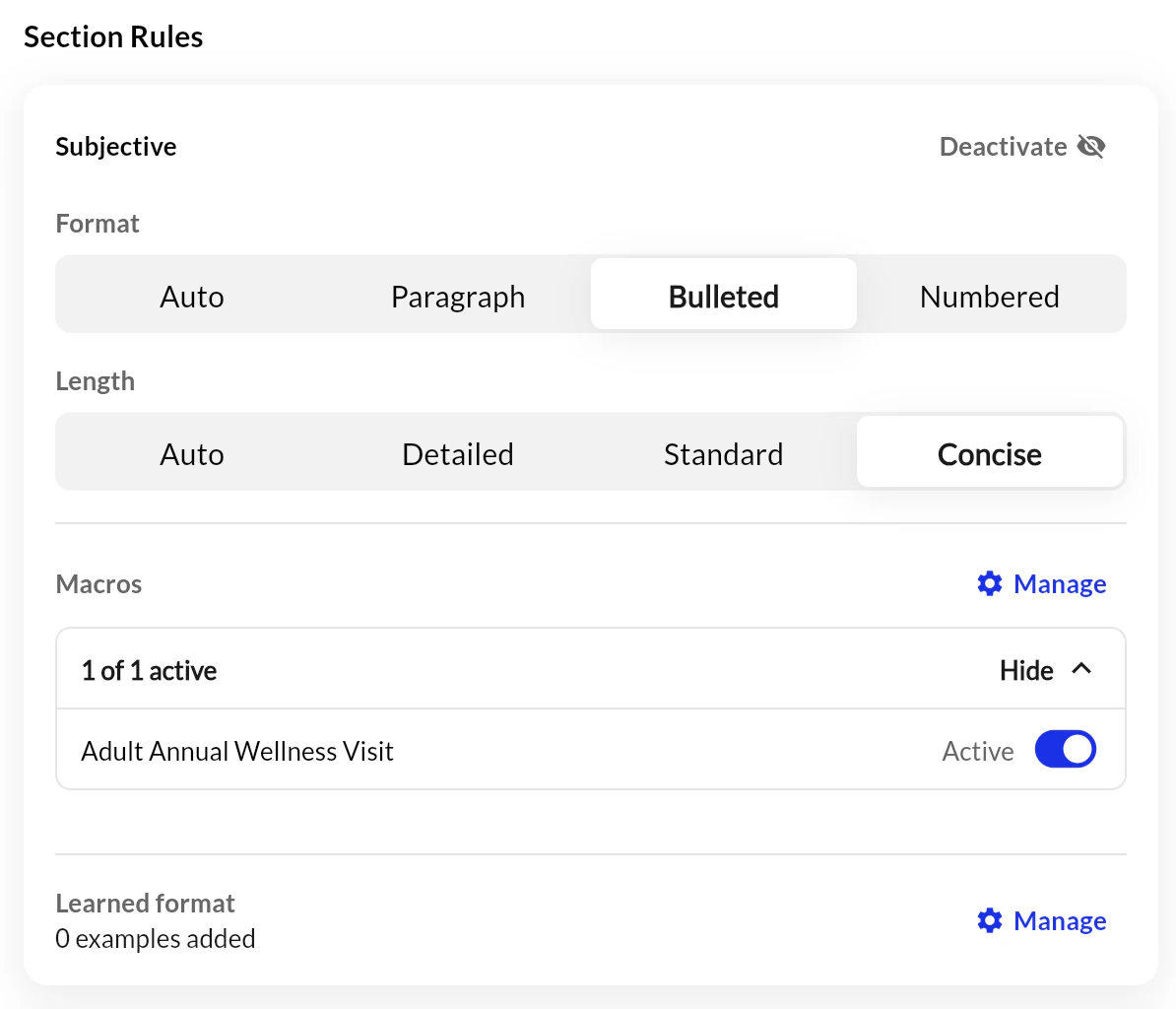
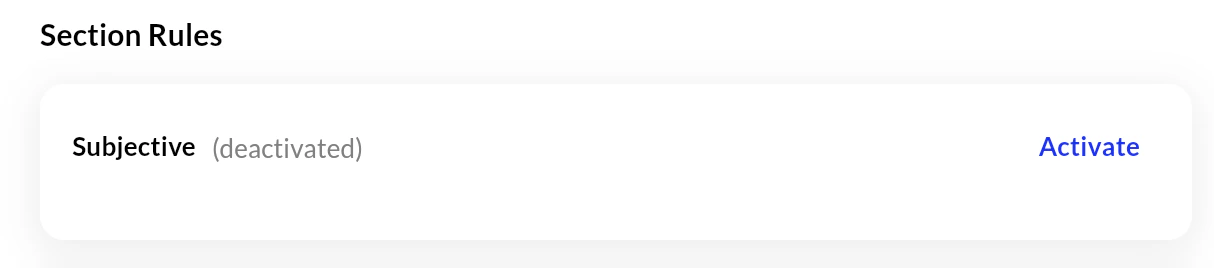
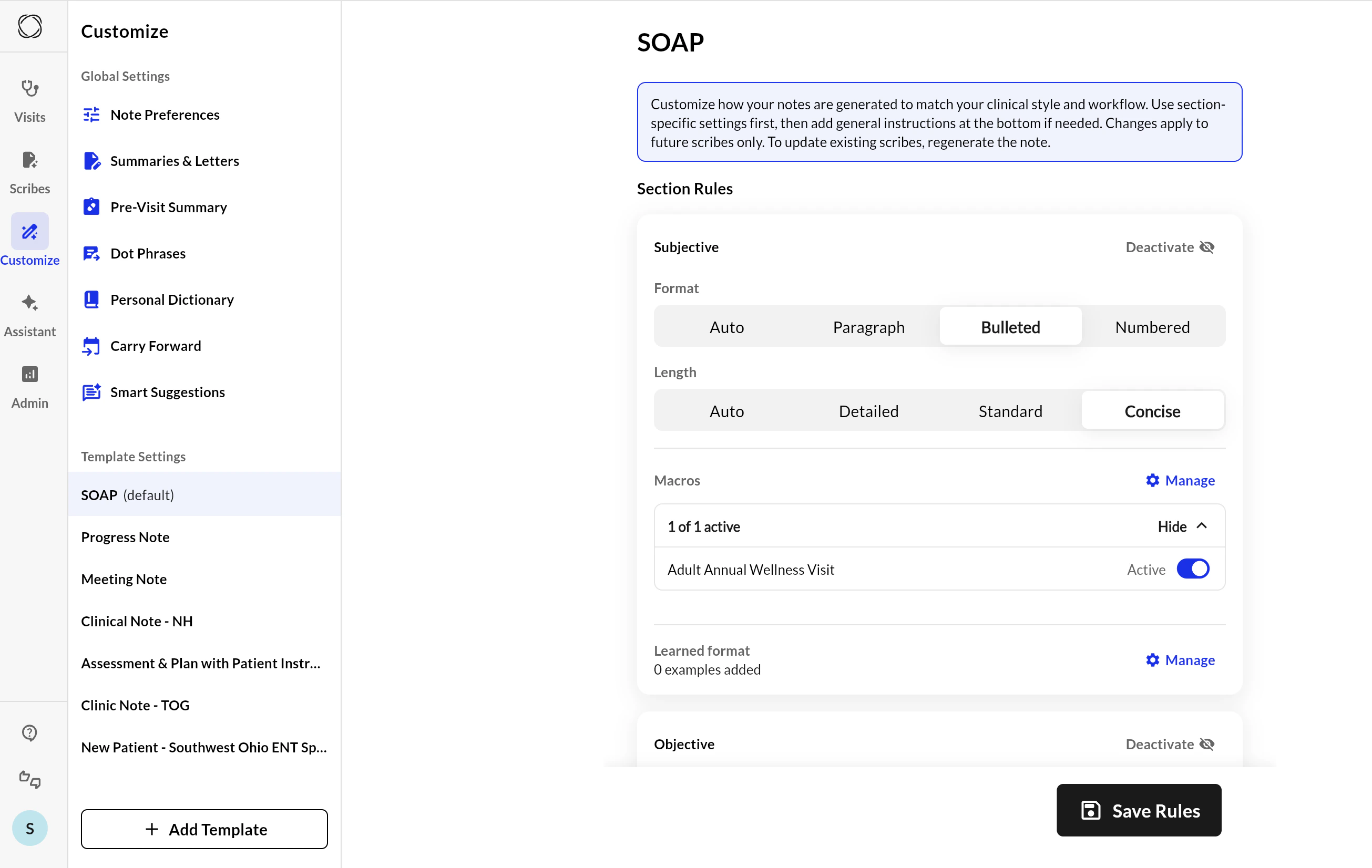
You have the option to skip certain sections of a template created by using the '**Deactivate**' button.
 ***
### Favorite vs. Custom Templates
Templates in the Template Library are grouped into two categories:
* **Favorite Templates:** These are the templates that appear in the template dropdown on the **Visit page**. Providers can reorder these templates to suit their workflow.
* **Custom Templates:** These are provider-built templates created using the **+ Add Template** button located at the bottom of the **Customize** tab. They are unique to each user and fully configurable.
To switch between views, use the **Favorite / Custom** tabs at the top of the Template Library.
***
### Build a new Custom Template
When building a custom template:
* **Template Title**: Required name of the template.
* **Description**: Optional one-line summary to help identify the template’s purpose.
* **Section Title**: Label for each section (e.g., "Objective", "Findings").
* **Section Content**: Field where you describe how the section should be filled out. Include guidance, formatting expectations, or placeholders.
Use the **+ Add Section** or **🗑 Delete Section** buttons to manage structure.
Click **Save Edit** to finalize your template and begin using it immediately.
> Custom templates are ideal for specialized workflows, niche clinical content, or specific documentation structures required by individual providers or departments.
***
#### Deactivate Sections in Templates
You have the option to skip certain sections of a template created by using the '**Deactivate**' button.
***
### Favorite vs. Custom Templates
Templates in the Template Library are grouped into two categories:
* **Favorite Templates:** These are the templates that appear in the template dropdown on the **Visit page**. Providers can reorder these templates to suit their workflow.
* **Custom Templates:** These are provider-built templates created using the **+ Add Template** button located at the bottom of the **Customize** tab. They are unique to each user and fully configurable.
To switch between views, use the **Favorite / Custom** tabs at the top of the Template Library.
***
### Build a new Custom Template
When building a custom template:
* **Template Title**: Required name of the template.
* **Description**: Optional one-line summary to help identify the template’s purpose.
* **Section Title**: Label for each section (e.g., "Objective", "Findings").
* **Section Content**: Field where you describe how the section should be filled out. Include guidance, formatting expectations, or placeholders.
Use the **+ Add Section** or **🗑 Delete Section** buttons to manage structure.
Click **Save Edit** to finalize your template and begin using it immediately.
> Custom templates are ideal for specialized workflows, niche clinical content, or specific documentation structures required by individual providers or departments.
***
#### Deactivate Sections in Templates
You have the option to skip certain sections of a template created by using the '**Deactivate**' button.