> ## Documentation Index
> Fetch the complete documentation index at: https://docs.ambient.commure.com/llms.txt
> Use this file to discover all available pages before exploring further.
# Macro Library
**Import and manage your EHR macros without rebuilding from scratch.**
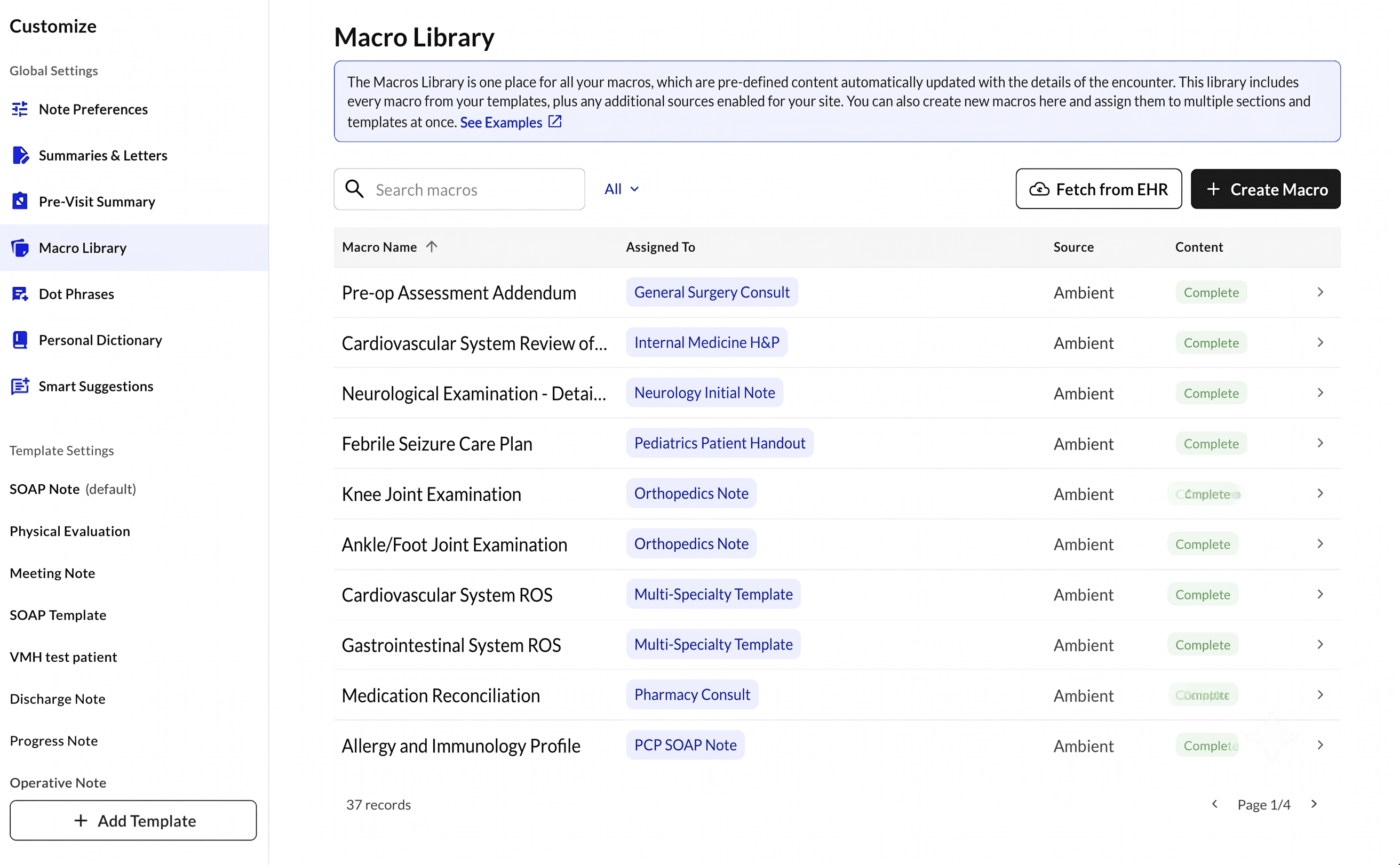
**Macro Library** gives providers a centralized place to view, set up, and apply macros imported directly from their EHR. Rather than recreating macros manually in Ambient, the system automatically pulls your existing Athena macros — both Text Macros and Saved Findings — and surfaces them for review and activation. Once configured, macros apply automatically to scribes whenever the selection criteria is met.
 ***
### **Macro States**
The Macro Library has two sections:
* **Drafted** — macros pulled from your EHR that haven't been reviewed yet. These appear at the top of the page. You can click into them to complete setup, or delete any that aren't relevant.
* **Completed** — macros that have been fully configured, assigned to template sections, and are actively applying to your scribes.
***
### **EHR Macro Types**
Two types of macros are imported:
* **Text Macros** — short text snippets tied to a keyword shortcut in Athena, mapped to specific note sections (e.g., HPI, ROS, PE).
* **Saved Findings / Templates** — pre-filled exam content for Physical Exam, Review of Systems, and HPI sections, pulled from your recent encounter history.
Currently supported for Athena only
***
### **How to Use It**
**Setting up a macro from your EHR:**
1. Navigate to **Customize → Macro Library**
2. Select a macro from the Incomplete Macro list (macros pulled from EHR) or any macro you wish to update
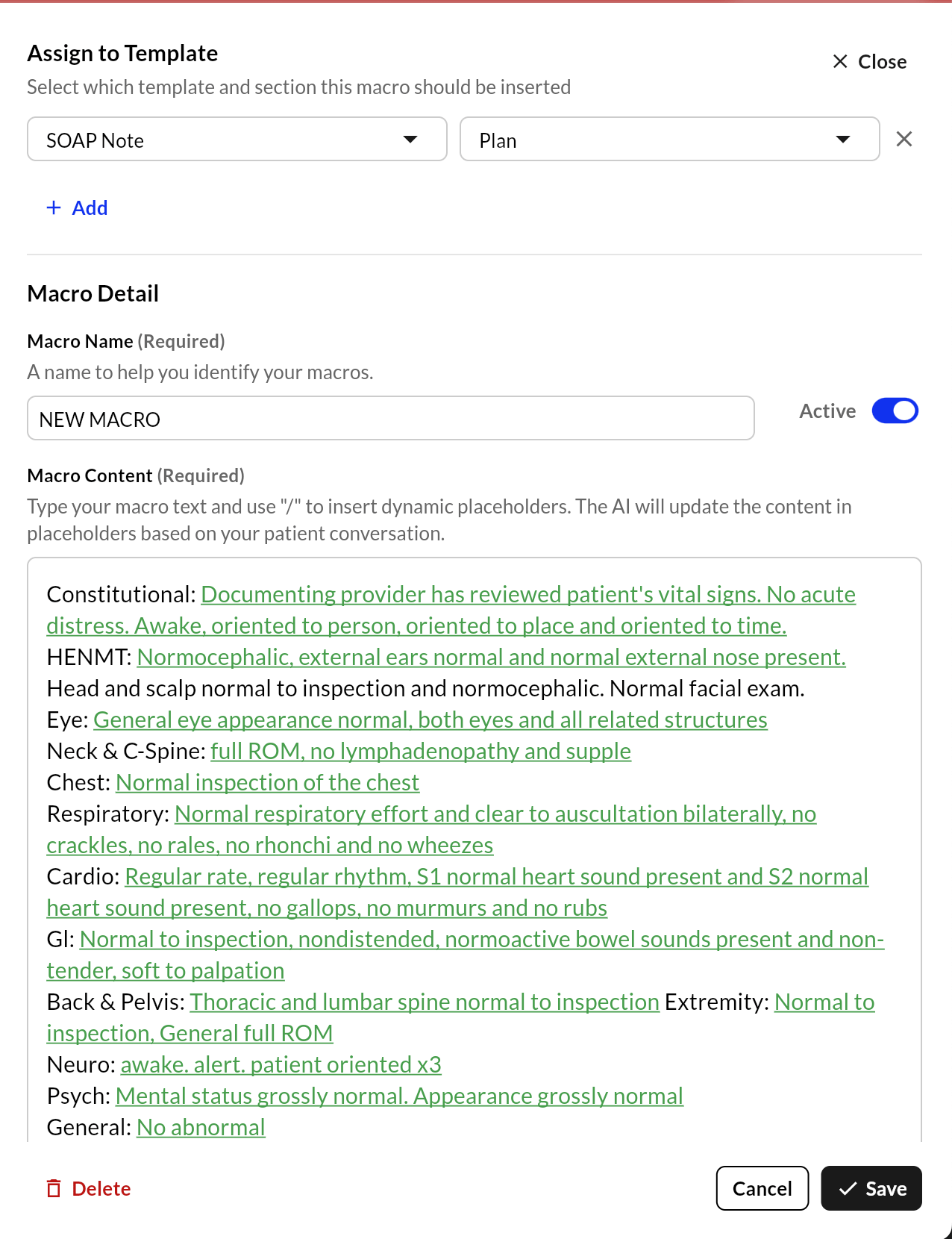
3. Click on a macro to complete setup:
* **Assign template sections** — select which sections of your note template this macro applies to
* **Review content** — edit the macro text as needed
* **Set selection criteria** — describe when this macro should trigger (e.g., *"Use this macro when the patient presents for a routine annual wellness exam"*)
4. Save — the macro moves to **Completed** and will auto-apply to future scribes when the criteria is met
5. Completed macros also appear under **Template Settings**, where you can continue to edit them
***
### **Macro States**
The Macro Library has two sections:
* **Drafted** — macros pulled from your EHR that haven't been reviewed yet. These appear at the top of the page. You can click into them to complete setup, or delete any that aren't relevant.
* **Completed** — macros that have been fully configured, assigned to template sections, and are actively applying to your scribes.
***
### **EHR Macro Types**
Two types of macros are imported:
* **Text Macros** — short text snippets tied to a keyword shortcut in Athena, mapped to specific note sections (e.g., HPI, ROS, PE).
* **Saved Findings / Templates** — pre-filled exam content for Physical Exam, Review of Systems, and HPI sections, pulled from your recent encounter history.
Currently supported for Athena only
***
### **How to Use It**
**Setting up a macro from your EHR:**
1. Navigate to **Customize → Macro Library**
2. Select a macro from the Incomplete Macro list (macros pulled from EHR) or any macro you wish to update
3. Click on a macro to complete setup:
* **Assign template sections** — select which sections of your note template this macro applies to
* **Review content** — edit the macro text as needed
* **Set selection criteria** — describe when this macro should trigger (e.g., *"Use this macro when the patient presents for a routine annual wellness exam"*)
4. Save — the macro moves to **Completed** and will auto-apply to future scribes when the criteria is met
5. Completed macros also appear under **Template Settings**, where you can continue to edit them
 **Fetching macros from your EHR:**
* Click **Fetch from EHR** in the Macro Library to pull your latest macros from Athena
* A background sync runs automatically — you'll see a notification when your macros are ready to review
* No IT involvement or manual import required
***
### **Multi-Section Macros**
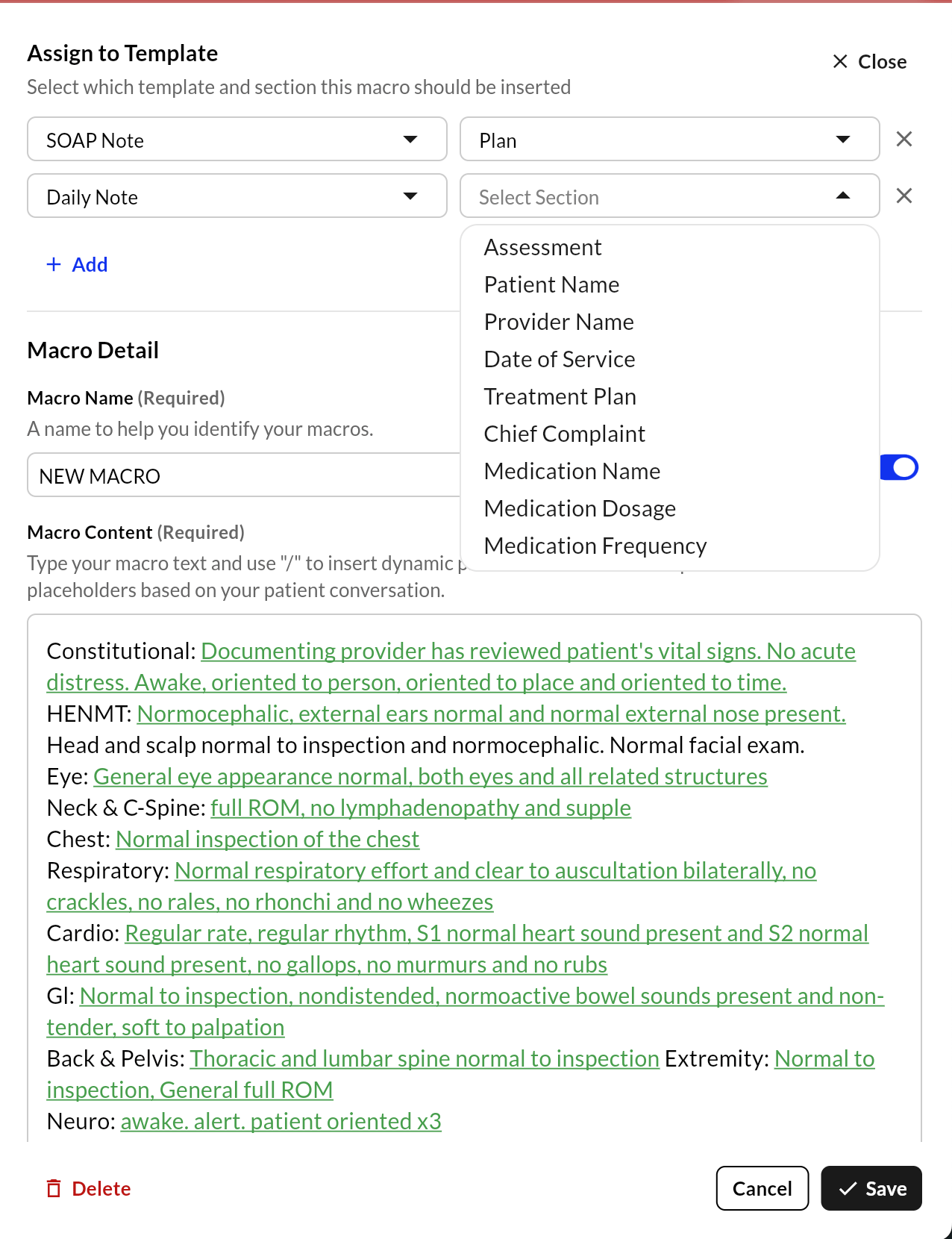
A single macro can be linked to multiple template sections at once.
* Editing a macro from **Macro Library** updates all linked sections simultaneously
* Editing from **Template Settings** will prompt you to choose: update all linked sections, or create a separate copy for just this section
> **Note:** Site-level and template-level macros remain read-only in Macro Library, consistent with their behavior in Template Settings. Only provider-level macros are editable.
**Fetching macros from your EHR:**
* Click **Fetch from EHR** in the Macro Library to pull your latest macros from Athena
* A background sync runs automatically — you'll see a notification when your macros are ready to review
* No IT involvement or manual import required
***
### **Multi-Section Macros**
A single macro can be linked to multiple template sections at once.
* Editing a macro from **Macro Library** updates all linked sections simultaneously
* Editing from **Template Settings** will prompt you to choose: update all linked sections, or create a separate copy for just this section
> **Note:** Site-level and template-level macros remain read-only in Macro Library, consistent with their behavior in Template Settings. Only provider-level macros are editable.
 ***
### **Current EHR Support**
| **EHR** | **Status** |
| :--------- | :---------- |
| Athena | Supported |
| Other EHRs | Coming soon |
***
### **Benefits**
* Save hours of manual macro re-entry at go-live
* Preserve the exact macro workflows providers already use in their EHR
* Macros apply automatically during the visit — no extra steps required
* A single macro can populate multiple note sections, keeping documentation consistent
***
***
### **Current EHR Support**
| **EHR** | **Status** |
| :--------- | :---------- |
| Athena | Supported |
| Other EHRs | Coming soon |
***
### **Benefits**
* Save hours of manual macro re-entry at go-live
* Preserve the exact macro workflows providers already use in their EHR
* Macros apply automatically during the visit — no extra steps required
* A single macro can populate multiple note sections, keeping documentation consistent
***